Save, share and import sets
Your work lives in your browser. A .nxe file is a portable copy of a whole set — every pixel you painted and every setting you chose — in one file you can keep, back up or send to someone else.
Export a set
Go to Build & Export and scroll to Portable Sets (.nxe).

Press Export <name>.nxe and it downloads.
Want only part of a set? Click the arrow at the left of the row to expand it, then tick just the pieces you want. Select all and Deselect all are there too.
Import a set
Go to the sets screen (the box icon in the left rail) and press Import .nxe.
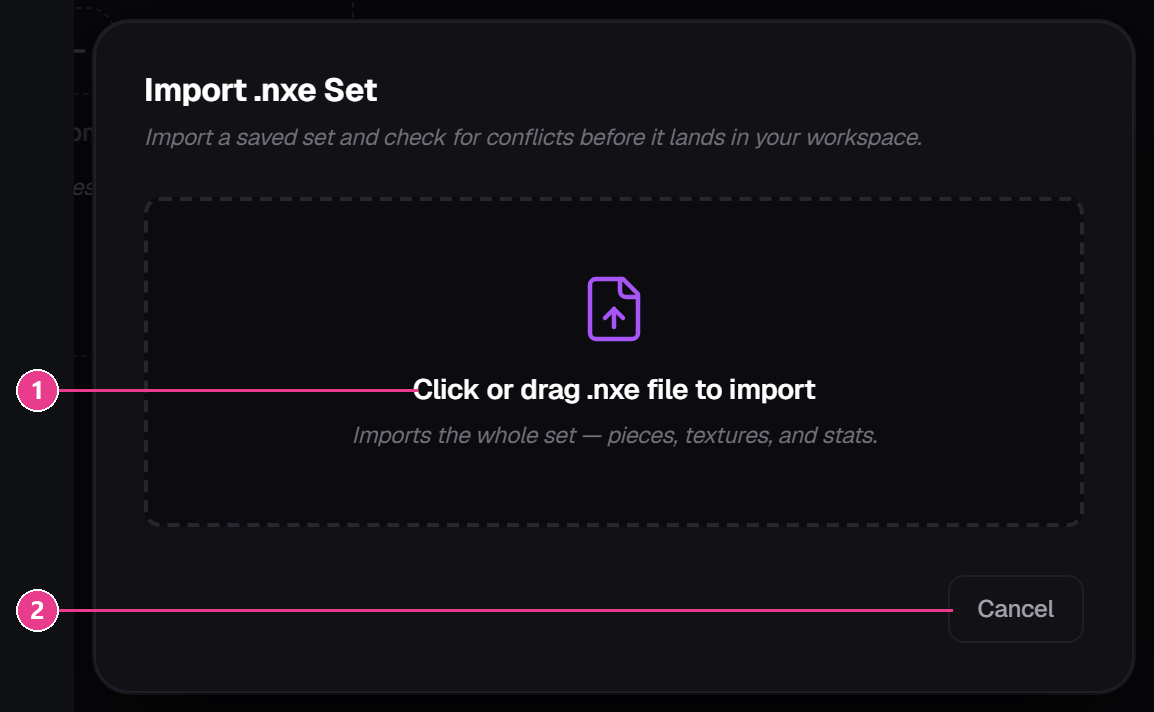
- The drop zone — drag your
.nxefile onto it, or click to browse. - Cancel — back out. Once a file is loaded, an Import button appears next to it.
After the file loads you get fields for Set Name, Namespace and Prefix, and a Pieces to Import list. Tick the pieces you want and press Import.
“Collision detected”
This means the set you're importing shares a namespace or prefix with one you already have. Left alone, one would overwrite the other.
The fix is in the same dialog:
- Change the Namespace — its label turns amber and says (In use) when it clashes. Change it until it doesn't.
- Press the dice next to Prefix to grab a free number.
The Import button stays greyed out until nothing clashes.
Your server keeps copies too
Every time you deploy, a copy of each set is stored on your server in plugins/NxEquipement/storage/. If you lose your browser data, run /nxe editor — the editor pulls those copies back down and your sets reappear.
This is a safety net, not a substitute for exporting .nxe files.
Delete a set
The trash icon on a set card, or Delete Set on the set's own screen. It asks first and tells you exactly what's about to go. It cannot be undone. Export a .nxe first if there's any doubt.