The editor window
Every screen has the same frame around it. Learn these four parts once and you'll never be lost.
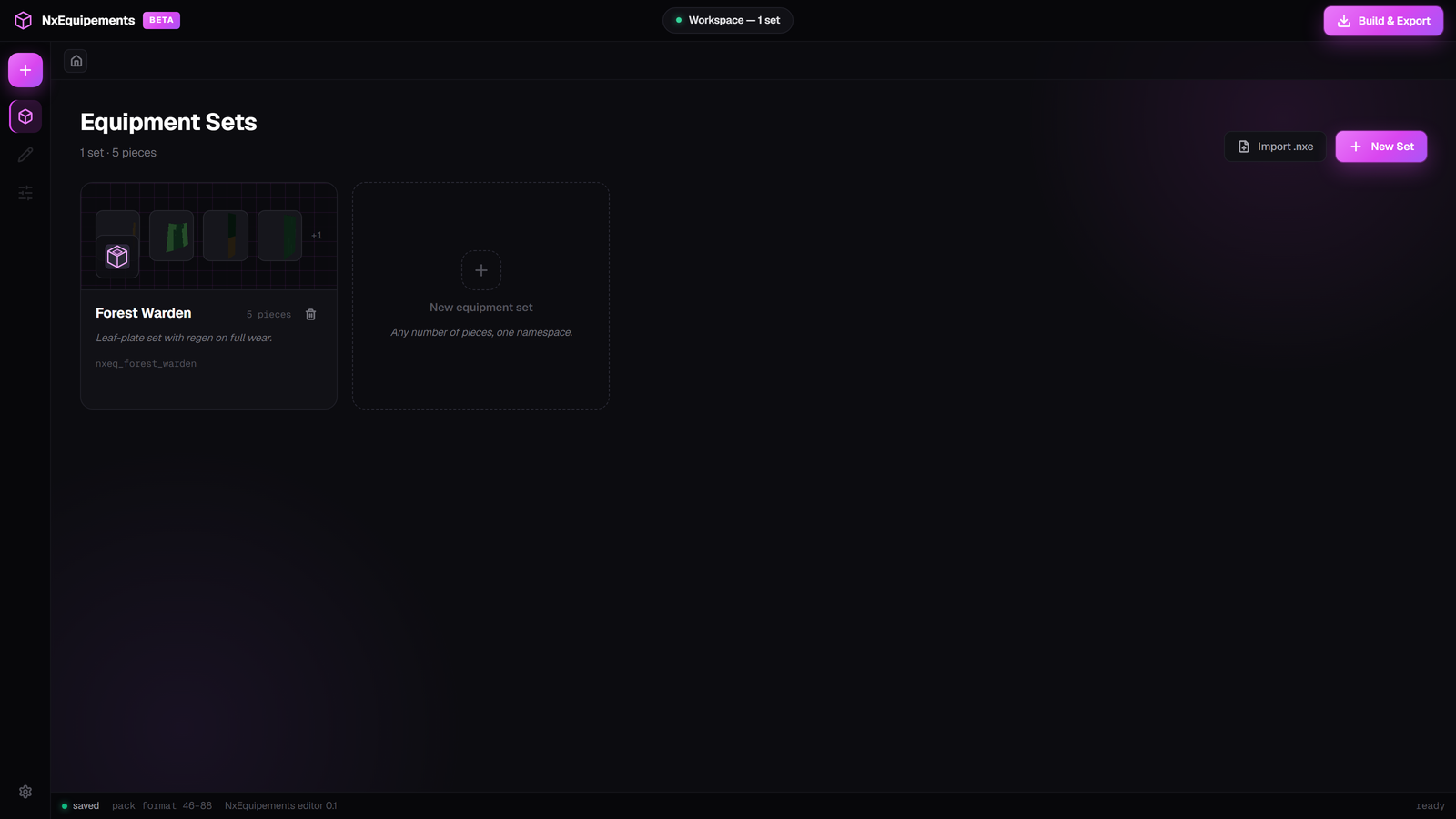
The top bar

- The logo. Decoration only.
- Where you are. Reads things like “Painting Forest Warden — Helmet” or “Build & Export”.
- Build & Export. Press this when you're finished and want your work on the server.
The left rail
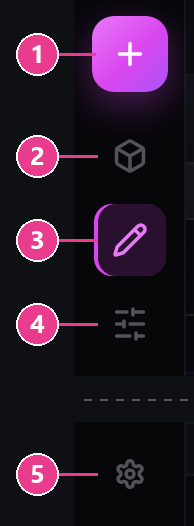
- New set (pink +) — starts a brand new equipment set.
- Sets — back to the list of all your sets.
- Texture painter — opens the piece you have open for painting.
- Piece configuration — stats and settings for that piece.
- Settings — pack name, icon, and two plugin options.
“Why are two icons greyed out?”
Because you don't have a piece open yet. Buttons 3 and 4 stay dim, and their tooltip changes to “Open a piece first”.
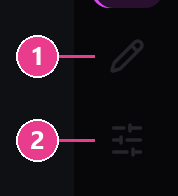
- Texture painter — greyed out.
- Piece configuration — greyed out.
Nothing is broken. Click a set, then click a piece inside it, and both light up.
The breadcrumb bar

- Home — back to all your sets.
- The set you're in. Click it to go back to that set.
- The piece you're working on.
- The screen toggle — flips between painting and configuring. It reads Configure piece while you're painting and Open painter while you're configuring.
The status bar
Along the bottom. Covered on the previous page — the important part is the save dot on the left.