Import an image
Already have artwork — a logo, a pattern, a texture from somewhere else? Bring it straight in.
Bring it in
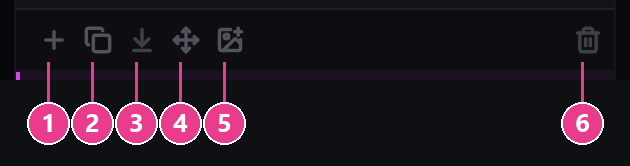
Two buttons do this, and both add the image as a new layer so nothing you've already painted is at risk.

PNG, WebP and GIF all work.
Put it where you want it
The image comes in floating, and the toolbar turns into a Transform bar. Drag the picture to move it, drag its handles to resize.
| Control | What it does |
|---|---|
| Rotate 90° left / right | Turns it a quarter turn |
| Scale to fit the canvas | Blows it up to fill the sheet |
| Pixel snap | Forces it onto whole pixels. Turn this on — it stops blurry half-pixel edges. |
| Snap step | How coarse the snapping is, in pixels |
| Aspect ratio lock | Stops it squashing out of shape while you resize |
| Whole-multiple scaling | Only 2×, 3×, ½, ⅓ — keeps pixel art perfectly sharp |
When it's where you want it, press Apply or hit Enter. Changed your mind? Cancel or Esc.
For pixel art, turn on whole-multiple scaling. Scaling to some random size smears your pixels into mush. 2× or 3× keeps every edge crisp.
Move something you already painted
Same tools, no file needed:
- Select (M) then drag a box round it — lifts just that patch.
- Transform layer — button 4 on the layer toolbar — lifts the entire layer.
Either way you get the same Transform bar.
If Transform layer does nothing, the layer is locked. Click its padlock — button 3 on a layer row — to unlock it.