Build and deploy
Your gear is painted and configured. Time to put it on the server. Click Build & Export in the top right.
1. Tick the sets you want
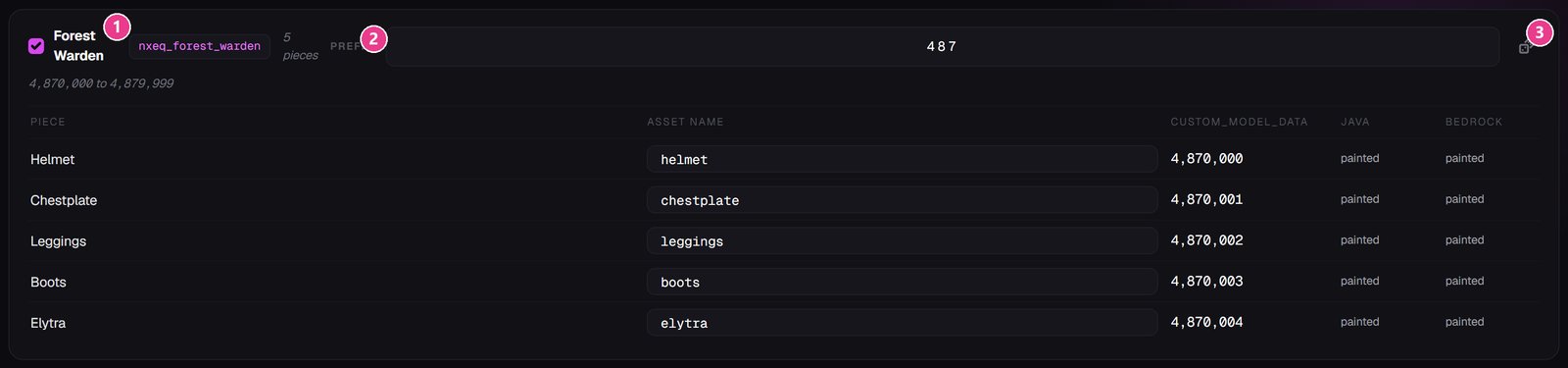
- The tick box and set name — untick to leave this set out of the build.
- Prefix — a 3-digit number that keeps your items from clashing with other plugins'.
- Roll again — the dice picks a new random prefix.
Don't set a low prefix. If you type something small the editor warns you, because low numbers collide with ordinary vanilla items and can make every plain iron chestplate on your server look wrong. Take whatever it gave you.
2. The piece table

- Piece — click a name to jump straight to it in the painter.
- Asset name — the file name inside the pack. Editable if you want it tidier.
- custom_model_data — the number Minecraft uses internally. Nothing to do here.
- Java — what Java players will see.
- Bedrock — what Bedrock players will see.
3. Press Build pack

- The build button. Says Build pack the first time and Rebuild after that.
Problems appear underneath as orange warnings. The most common by far:
- “nothing painted — it will show as the vanilla item” — you haven't made that piece's inventory icon. Go back and generate one.
- “Worn look is Java-only” — information about Bedrock, not an error. See Bedrock and Geyser.
Fix anything orange, then press Rebuild.
4. Send it to your server
The build tries to push itself to your server automatically. Under Deploy you get a command like this:
/nxe applyedit a1b2c3d4e5f6Click the copy button, go in game and run it.
5. Apply the resource pack
The plugin posts a confirmation in chat. Click the green button.
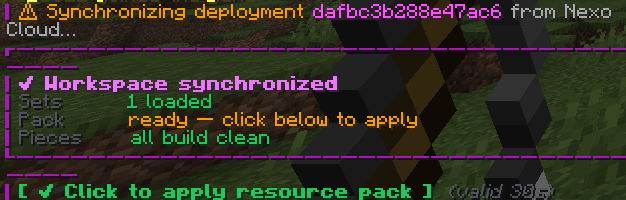
Check your work with /nxe menu.
The chat prompt expires. It's good for 30 seconds by default — change that in Settings. Miss it and /nxe confirm does the same job.
Or download the files yourself
Scroll down for three download buttons. Use these if you'd rather install by hand, or if you're merging with another plugin's pack.

- Java resource pack — the look. Goes on your pack host, or into
.minecraft/resourcepacksto test. - Geyser bundle — the Bedrock version. Unzip over
plugins/. - Plugin config — the items themselves, with stats, recipes and effects. Unzip over
plugins/.
The resource pack alone is not enough. The pack is only artwork. Without the Plugin config there are no items to look at. If you install by hand, install both.
After copying files in by hand, run /nxe reload in game.