Colours
The COLOR panel is on the right. Everything about choosing and keeping colours happens here.
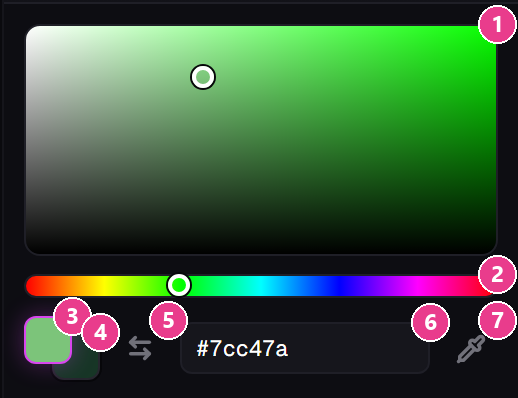
- The big square — drag anywhere in it to set how strong and how bright the colour is.
- The rainbow strip — drag it to pick the basic colour: red, green, blue and everything between.
- Primary swatch — the colour your left mouse button paints.
- Secondary swatch — the colour your right mouse button paints.
- Swap — trades the two over. Shortcut: X.
- Hex box — type a colour code straight in, like
#7cc47a. Press Enter to apply. - Eyedropper — click it, then click anywhere on the model or the sheet to grab that colour.
Build a palette before you paint
This is the single best habit to get into. Pick your handful of colours first, save them, and every piece in the set will match.
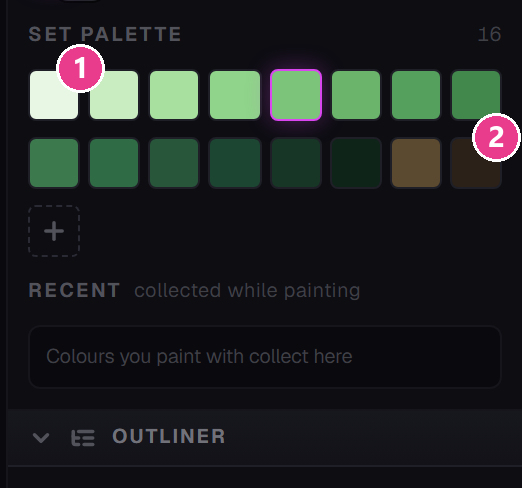
- First saved swatch. Click any swatch to paint with it. Hover one and a small × appears to remove it.
- Last saved swatch. Below the grid is the + button that saves your current colour, and under that the RECENT strip.
To save a colour:
- Choose it with the square and the rainbow strip.
- Click the + button under the palette.
- It's saved. Click it any time to come back to it.
The palette belongs to the set, not the piece. Save a colour while painting the helmet and it's waiting for you on the boots. That's what keeps a set looking like a set.
Recent colours
The RECENT strip fills up on its own with colours you've actually painted with — up to 24. Click any to go back to it; the bin icon clears the list.
Only tools that lay down colour feed this list. The eraser, shade tool and colour picker don't clutter it.
A quick way to get a good set of colours
- Pick your main colour and save it.
- Drag the square's dot down and left a little, save that — your shadow colour.
- Drag it up and right from the original, save that — your highlight.
- Block everything in with Fill, then use Shade (S) for depth.