Seeing what you're building
Four things in Model mode exist purely to help you judge size and position: the build volume, the graybox grid, the axis ball and the status line.
The build volume
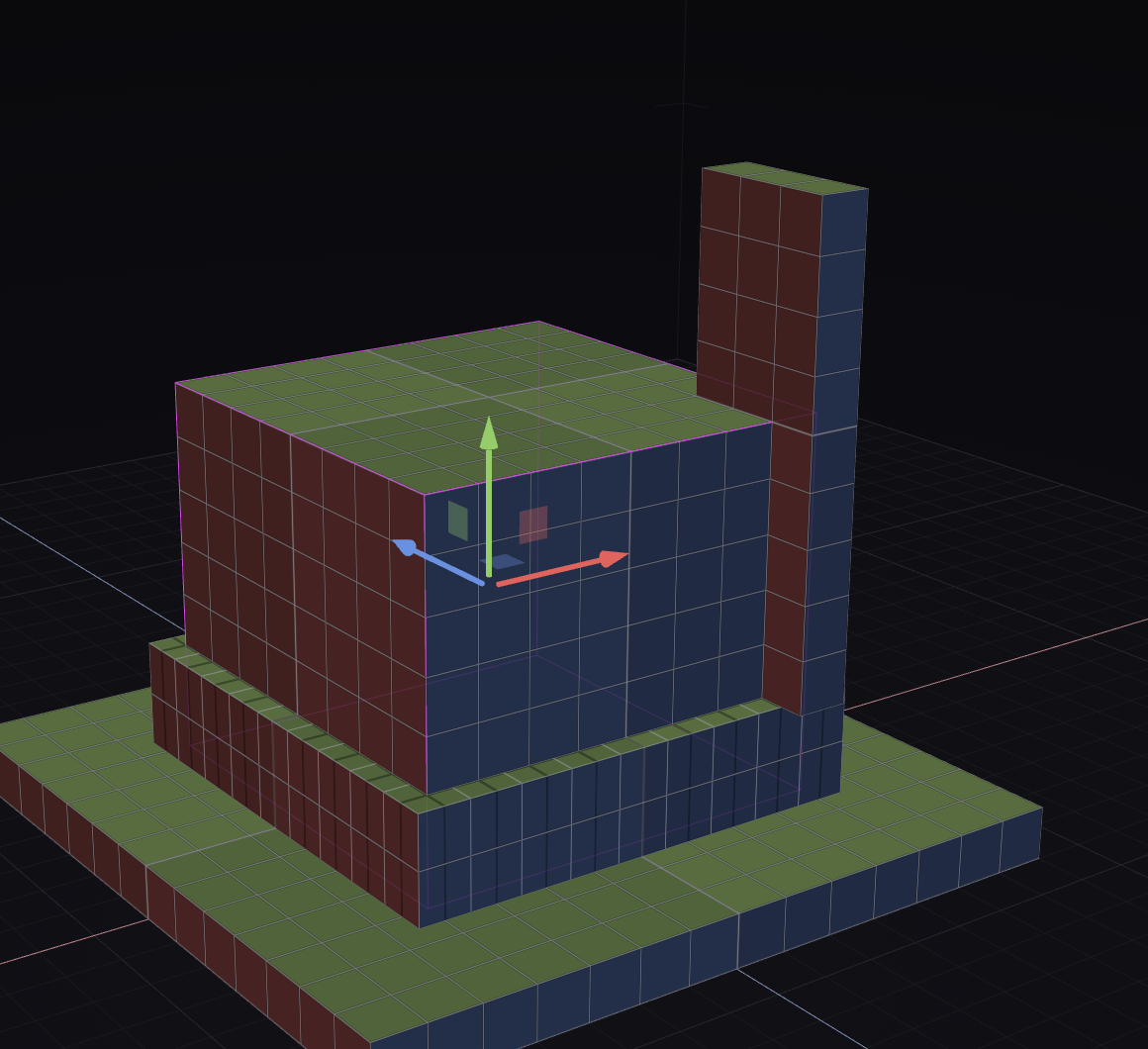
Every 3D model piece lives inside a box 48 units on a side. The seventh button on the mode bar draws its walls and ceiling, and it is on by default. Nothing you make may stick out past them.
The floor of that volume is where Y = 0 sits. A box at height 0 is resting on it.
Graybox
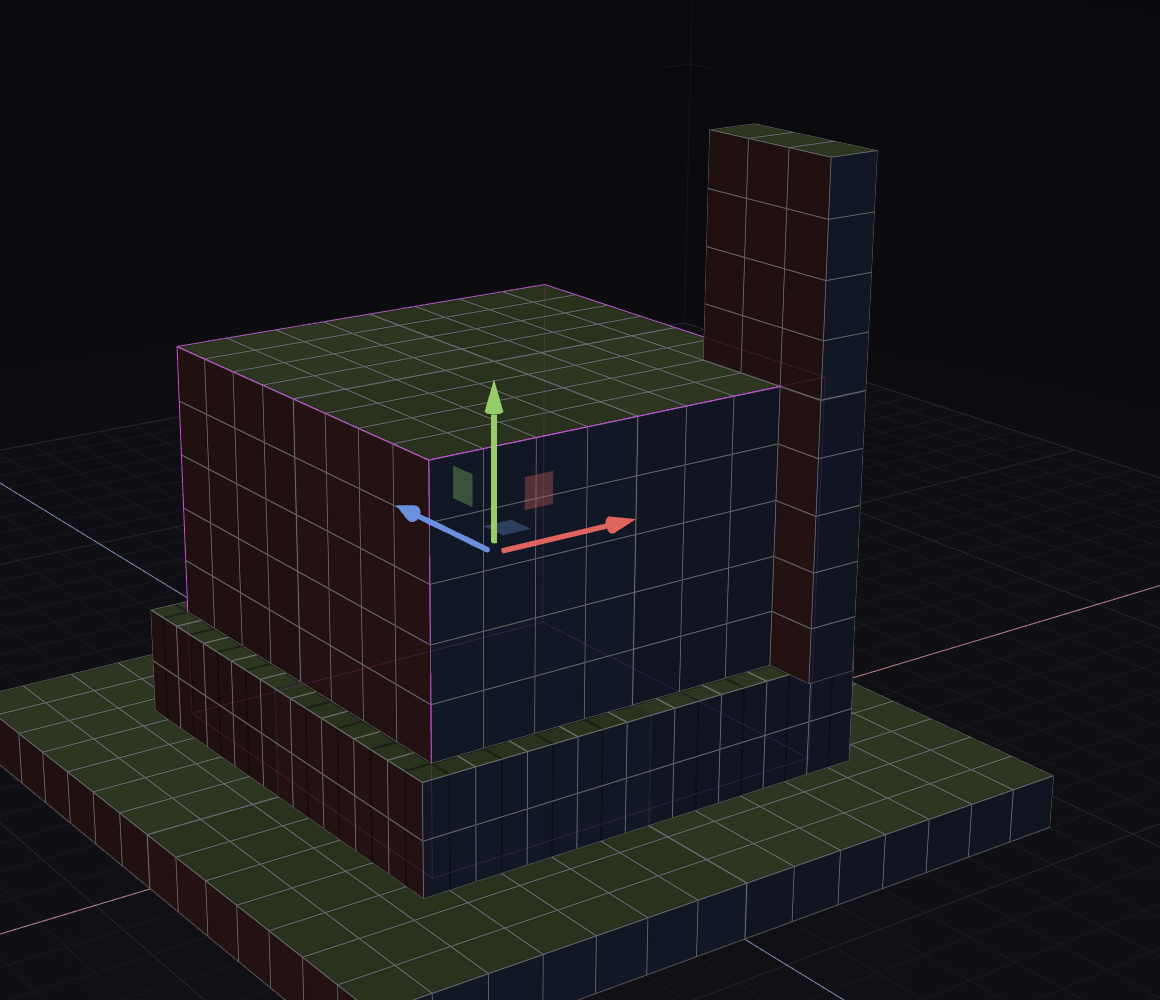
The sixth button on the mode bar swaps the plain floor for a ruler. Every small cell is one unit and every heavy line is eight — the same eight that a Minecraft block is wide. Switch it on when you are trying to work out whether a brim is too big, and off again when it gets noisy.
The axis ball
Bottom-left of the 3D view. It shows which way round the model currently is, and it is clickable.
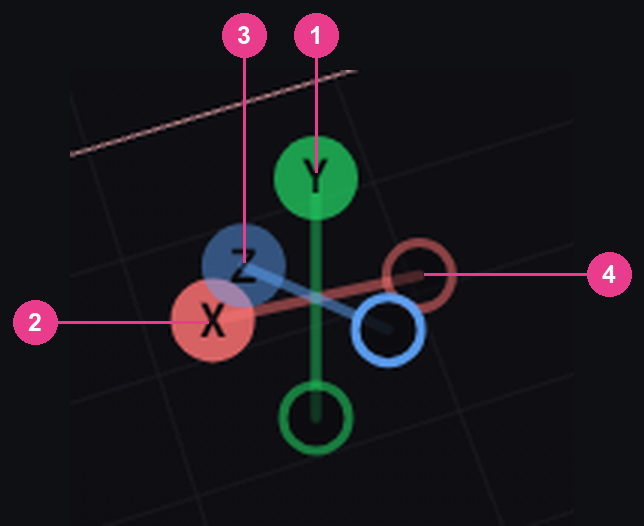
- Y, green — looks down from the top.
- X, red — looks in from the right.
- Z, blue — looks in from the back.
- The hollow rings — the opposite sides: bottom, left and front. One ring for each labelled ball.
Six clicks, six straight-on views. Getting a straight-on view is the quickest way to check whether two boxes really line up.
The status line — left half

- Your mouse and keys — click a box, drag a handle, Ctrl for fine, Shift for symmetric, left-drag to orbit, wheel to zoom.
- The box count — how many boxes the model has.
- The overall size — how big your model is right now, and the 48 it has to stay under.
- The texture size — the sheet the editor is currently using for you.
The status line — right half

- The name of the selected box.
- Its size — width × height × depth.
- Where it sits — the left/right and front/back numbers.
- How high it is off the floor.
- The gap underneath it — how far it still is from the floor.
When a box is sitting flat on the floor that last part changes to against the bed, in red. It is not an error. It is the editor telling you the box has run out of room to go down.