The mannequin
The figure wearing your armour is the mannequin. You can hide bits of it and dress it in your own skin.
Click the little person icon at the right of the viewport bar — Mannequin parts (button 9 in the viewport bar).
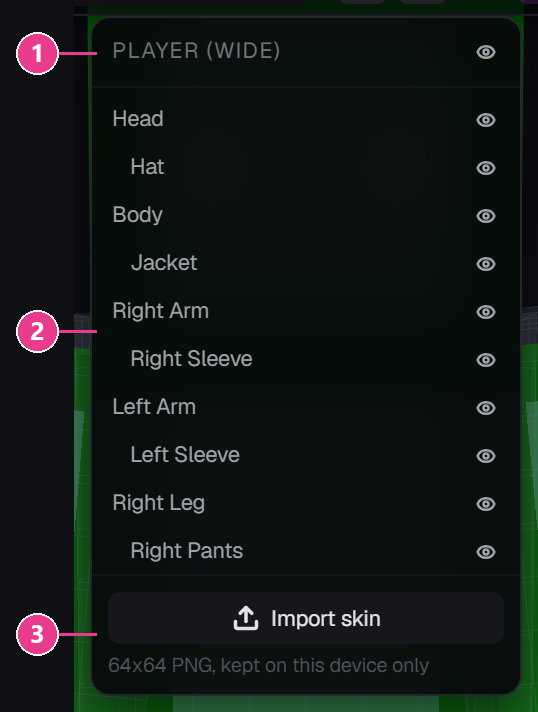
- The mannequin itself, with an eye icon. Click it to hide the whole figure and see your armour floating on its own.
- The body parts — Head, Hat, Body, Jacket, Right Arm, Right Sleeve and so on, each with its own eye. Click one to hide just that part.
- Skin controls — Import skin, and a reset button once you've loaded one.
Hide parts to reach what's underneath
This matters more than it sounds. Painting a chestplate's back is fiddly with arms in the way — hide both arms and it's easy.
Hiding parts only affects your view. It changes nothing about the item.
Use your own skin
- Click Import skin.
- Pick a 64×64 PNG Minecraft skin from your computer.
- The mannequin puts it on immediately.
Once a skin is loaded the button reads Replace skin, and a reset button appears to go back to the default.
Your skin never ends up in the pack. It's only a preview, stored on your own device. It cannot leak into anything you build or share.
If the skin won't load
- “Skins must be a PNG” — it's a JPG. Save it as PNG.
- “That image is too large for a skin” — keep it under about 512 KB.
- Old 64×32 skins work. Big HD skins get shrunk down cleanly.
You can't change the body type
The mannequin is chosen by the slot — a player for armour and elytra, a wolf for wolf armour, a horse for horse armour, a happy ghast for a harness. There's no slim/wide switch.