In-game commands
Everything is under one command: /nxequipement, which you can shorten to /nxe.
| Command | What it does |
|---|---|
| /nxe menu | Opens the equipment menu. Your main tool for testing. |
| /nxe editor | Sends you your private link to the web editor. |
| /nxe applyedit <uuid> | Installs a build from the editor. The editor gives you the exact command. |
| /nxe confirm | Applies the resource pack to you. |
| /nxe give <set> <piece> [player] | Gives one specific piece. |
| /nxe giveall [player] | Gives one of every piece of every set. |
| /nxe list | Lists the sets that loaded, and their pieces. |
| /nxe info | Tells you about the item in your hand. Use this when something looks wrong. |
| /nxe reload | Reloads sets from disk after copying files in by hand. |
Everything tab-completes — type /nxe give and press Tab to see your sets.
The menu has two levels
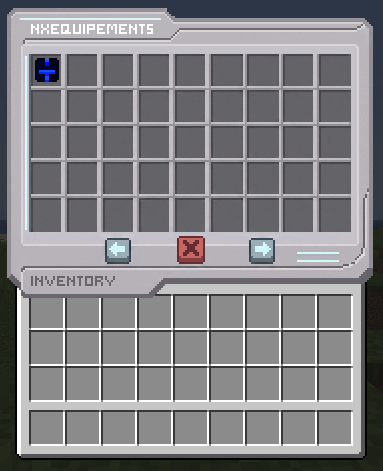
Run /nxe menu and you get one icon per set.
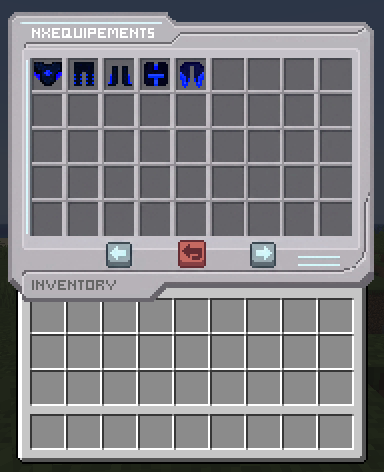
Click a set and it opens to show every piece inside it. Click a piece to take it.
The menu is empty on a fresh install. Nothing exists until you deploy something from the editor. See Your first deploy.
Permission
There's a single permission node:
nxequipement.useOperators have it already. Give it to staff with your permissions plugin to let them use the commands.
Players don't need any permission to wear your gear. The permission is only for the commands. Anyone can equip a piece you've given them or that they've crafted.
Which commands need you in game
menu, editor, applyedit, confirm and info are player-only. From the console, name a player: /nxe give forest_warden helmet Steve.
Checking a piece with /nxe info
Hold an item and run /nxe info. It prints the item's internal numbers. You don't need to understand them — but if you report a problem, this output is exactly what support will ask for.