The Model workspace
Open a 3D model piece and you land in the painter, same as always. The difference is a fourth button at the top of the 3D view: Model. Click it and the window rearranges.
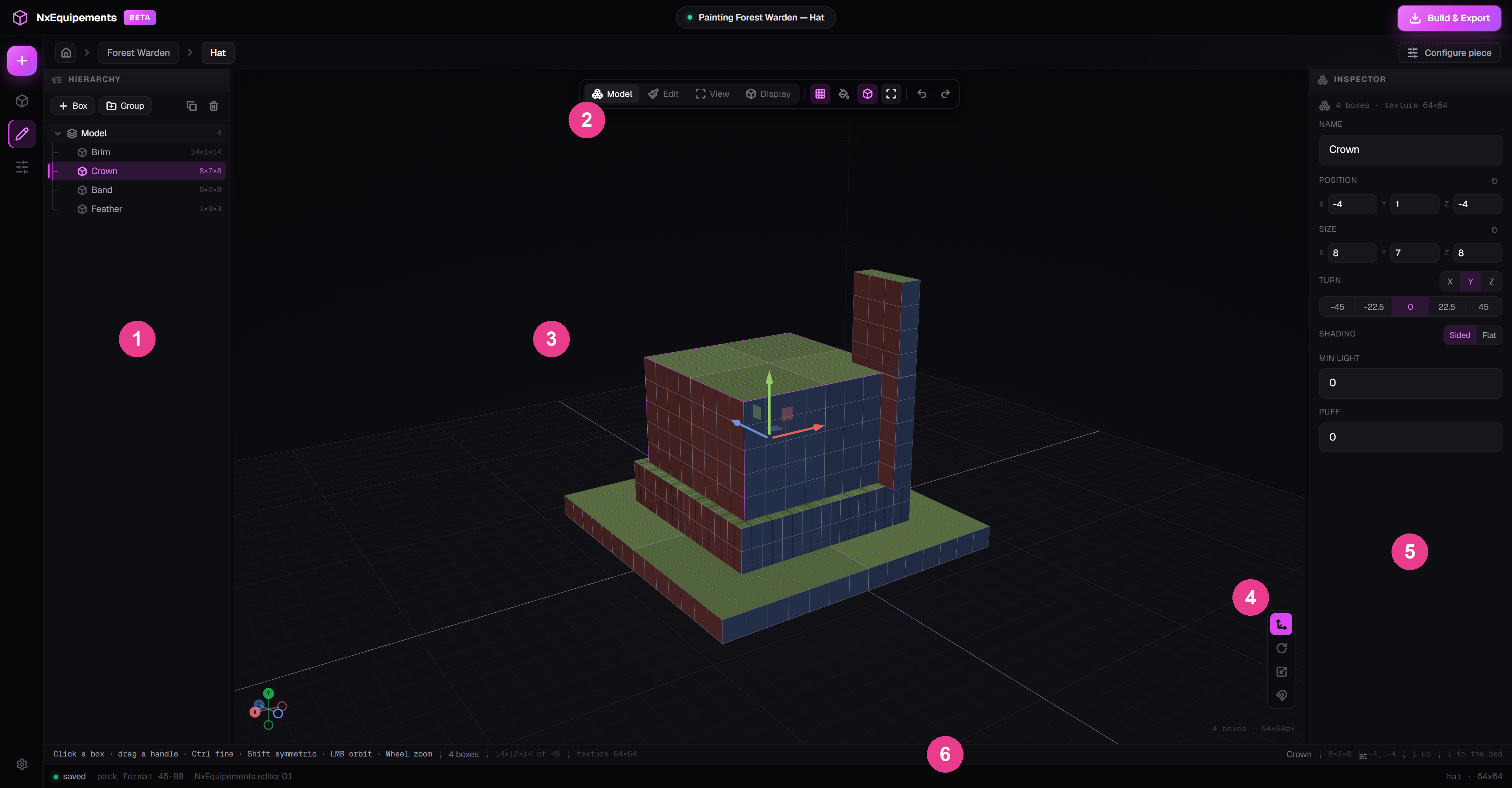
- HIERARCHY — every box in your model, as a list. Takes the place of TEXTURE and LAYERS. See HIERARCHY.
- The mode bar — Model, Edit, View, Display, plus what you can see and undo/redo.
- The 3D view — the model, the floor, and the handles on whatever box is selected.
- The handle rail — Move, Turn, Resize, Snap. See Move, Turn, Resize and Snap.
- INSPECTOR — the numbers for the one box you have selected. See INSPECTOR.
- The status line — what your mouse does, how big the model is, and where the selected box sits.
The mode bar

- Model — building. Click boxes, drag handles. Where this page lives.
- Edit — painting. The same painter you already know, now pointed at the shape you built.
- View — looking. Left-drag spins the model and nothing can be changed by accident.
- Display — how the item sits in the inventory, in the hand, on the ground and in a frame.
- Pixel grid on the boxes — draws the texture's pixel boundaries onto every box. Very useful for judging size.
- Graybox — turns the floor into a measuring grid: one cell is one unit, with a heavier line every eight.
- Build volume walls and ceiling — draws the box you have to stay inside. On by default.
- Frame the boxes — F. Recentres the camera on your model. Shift+F frames the whole build volume instead.
- Undo — Ctrl+Z.
- Redo — Ctrl+Shift+Z.
Undo is per mode. The undo buttons here walk back what you built — a box added, a box moved, a size changed. Painting has its own undo over in Edit.
Moving the camera
Same as everywhere else in the editor, and the status line repeats it while you work:
- Left-drag on empty space — orbit.
- Wheel — zoom.
- Shift+drag — pan.
- F — frame the model when you have lost it.
Left-clicking on a box selects it instead of orbiting. Start the drag on empty floor and you always get the camera.