Moving the camera
The controls change depending on which mode you're in, because in Edit mode your left button is busy painting.
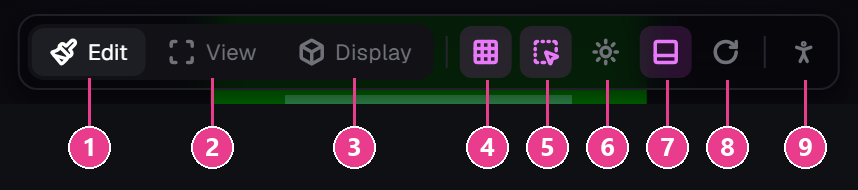
In Edit mode (button 1)
| Do this | Get this |
|---|---|
| Left-click / drag | Paint with the primary colour |
| Right-click / drag | Paint with the secondary colour |
| Middle-drag | Spin the model |
| Hold Space + left-drag | Spin the model (if you have no middle button) |
| Shift + drag | Slide the model around |
| Mouse wheel | Zoom in and out |
In View and Display mode (buttons 2 and 3)
No painting, so the left button is free:
| Do this | Get this |
|---|---|
| Left-drag | Spin the model |
| Shift + left-drag | Slide it around |
| Mouse wheel | Zoom |
Snap to an exact angle
Put your mouse over the 3D view and press a number:
| Key | View |
|---|---|
| 1 2 | Front · Back |
| 3 4 | Left · Right |
| 5 6 | Top · Bottom |
| 0 | Back to the starting view |
| F | Fit the whole model on screen |
Lost the model? Hover the 3D view and press 0. It snaps straight back.
The little axis widget
Bottom-left of the 3D view is a small coloured cross. Click the end of any arm to jump to that view — same as the number keys, but with the mouse.
Poses
Switch to View mode and a row of pose buttons appears under the viewport bar.
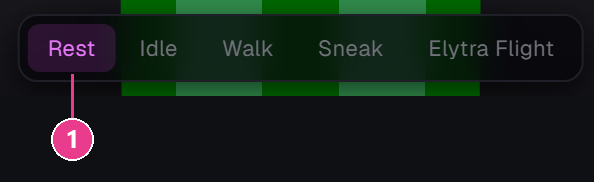
- Rest — the default standing pose. The buttons after it are the other poses; click one to make the mannequin move so you can check your armour in motion.
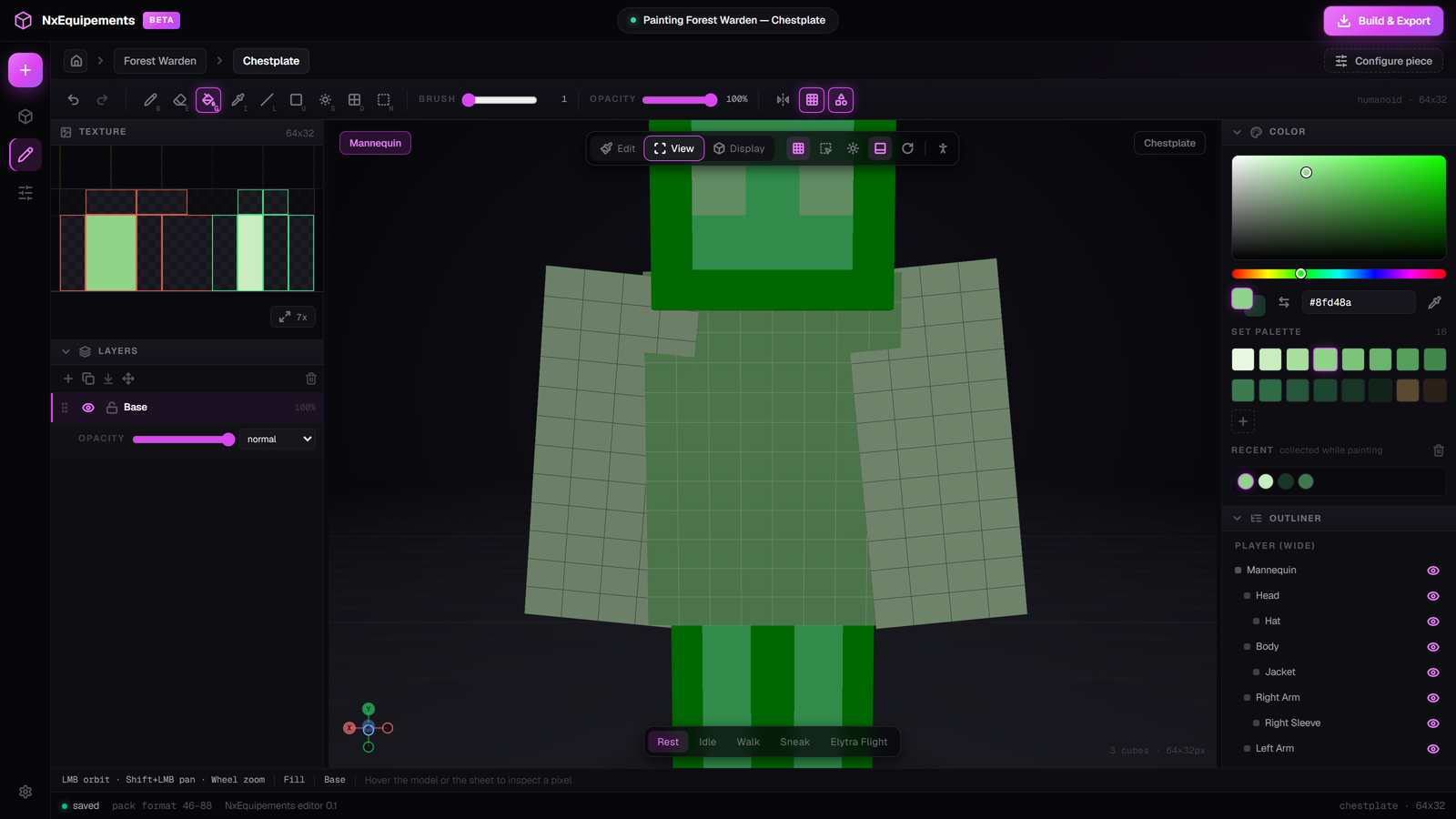
The flat sheet
The TEXTURE panel has its own controls:
- Wheel — zoom toward the pointer
- Middle-drag, or Space + left-drag — pan
- F or 0 — fit the sheet to the panel