INSPECTOR: one box's numbers
The right panel is everything about the one box you have selected. Drag a handle in the 3D view and these numbers move; type in them and the box moves. Same thing, two ways in.
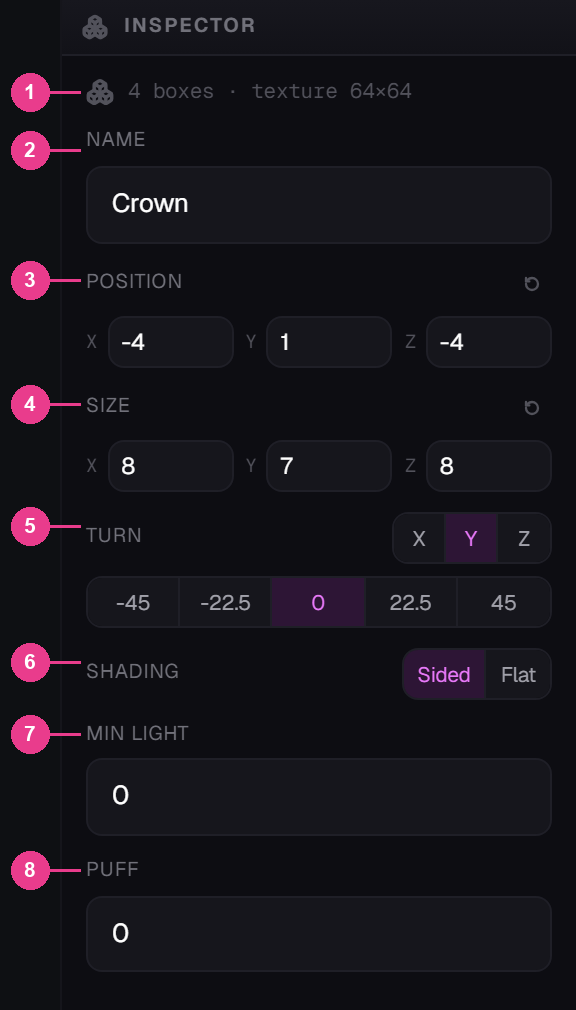
- The summary line — how many boxes the whole model has, and the texture sheet size the editor is currently using.
- Name — what the box is called in the tree. Call it Brim, not Cube 7.
- Position — where the box sits.
- Size — how big it is.
- Turn — a single tilt.
- Shading — how the faces catch the light.
- Min light — the darkest the box is allowed to look.
- Puff — grow the box without moving its texture.
Nothing selected
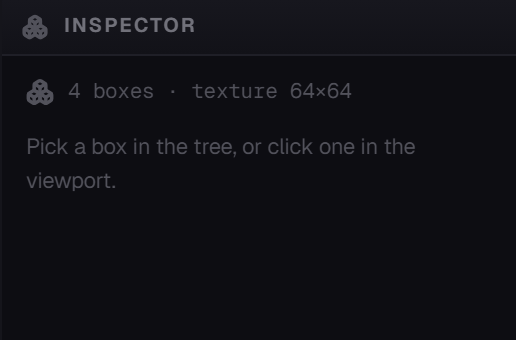
With nothing selected the panel keeps the summary line and asks you to “Pick a box in the tree, or click one in the viewport.” Both work.
Position
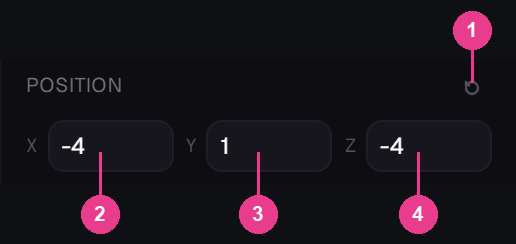
- Reset — puts the box back where it started.
- X — left and right, measured from the middle of the floor.
- Y — height above the floor. 0 is resting on it.
- Z — front and back, measured from the middle of the floor.
The arrows in each field step by a quarter unit, so you can nudge something into place without a mouse. Typing a number works too.
Size
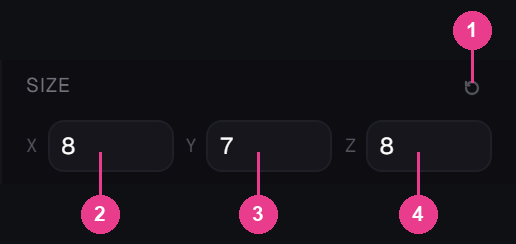
- Reset — back to the size it started at.
- X — width.
- Y — height.
- Z — depth.
Sizes are whole units, and nothing may go past 48 on any side. That is also the size of the build volume drawn around your model — the walls you can see are the wall you cannot cross.
Turn
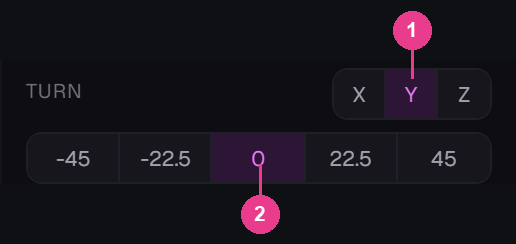
- The axis — X, Y or Z. Which way the box pivots.
- The angle — -45, -22.5, 0, 22.5, 45. Those five, and nothing in between.
Shading
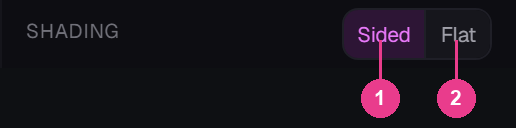
- Sided — the top is lighter than the sides, the way every block in the game looks. The normal choice.
- Flat — every face the same brightness. Use it for anything that should read as flat art, or as something giving off its own light.
Min light
How dark the box is allowed to get, from 0 to 15. Turn it up and the box keeps its brightness in a pitch-black cave.
Puff
Grows the box slightly in every direction without moving its texture. The classic use is two boxes in the same spot: the inner one is the body, the outer one is puffed a little and holds the trim, so the two never fight over the same surface.
It steps by a quarter unit. A little goes a long way — try 0.25 before you try 2.