🏗️ The Menu Builder Interface
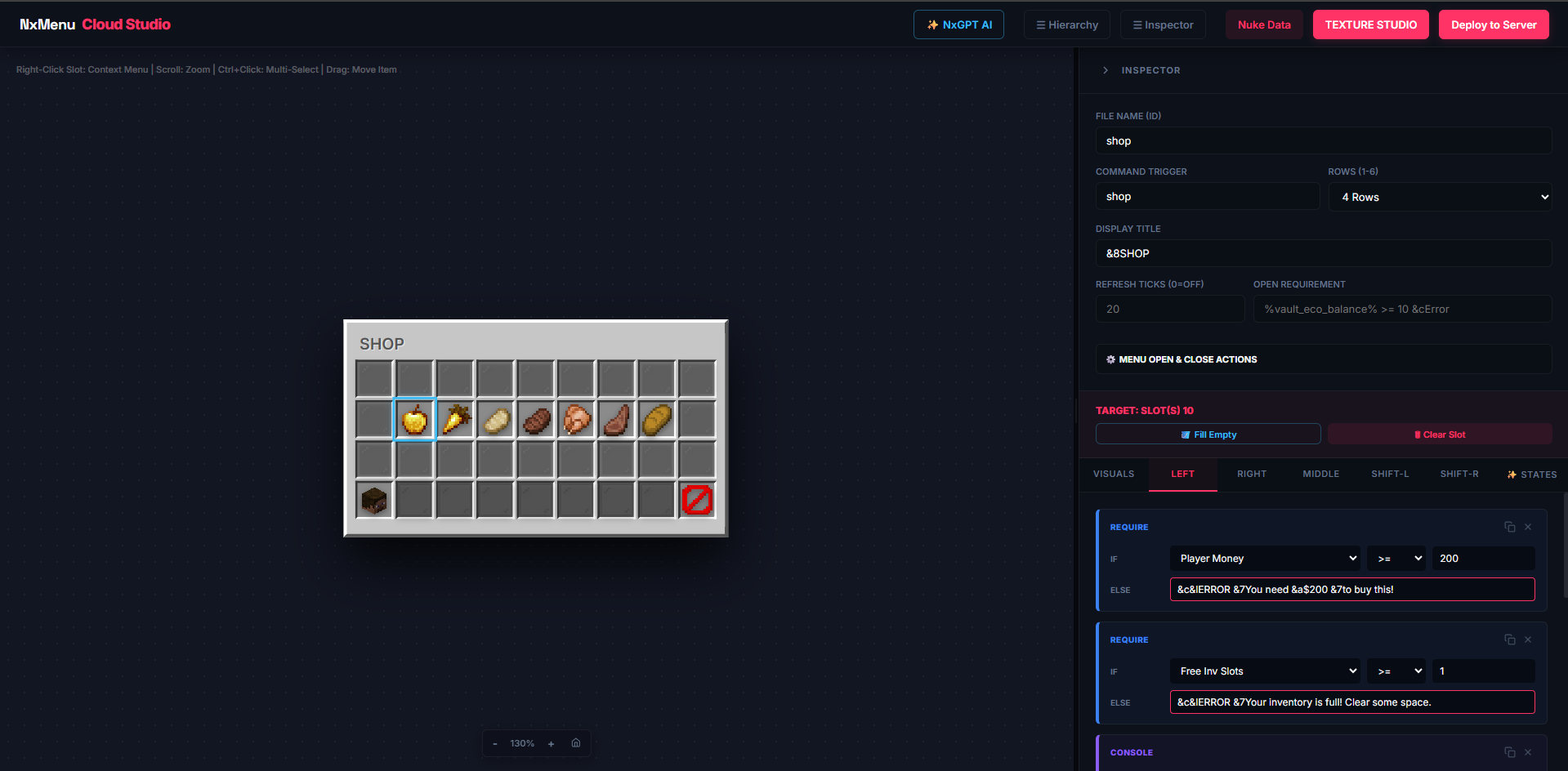
The Menu Builder is your logic workspace. Open it with /nxmenu editor.
🔝 Top Toolbar (Left to Right)
- NXMENU STUDIO — The brand badge.
- ⌨ DOCS — Opens an in-app quick reference.
- ⇣ IMPORT — Upload a
.zipor.jsonpackage shared by another creator. A 3-column picker lets you choose which menus, textures, and widgets to merge. - ⇡ EXPORT — Bundle selected menus + textures + widgets into a shareable
.zippackage. - ☰ HIERARCHY / INSPECTOR — Toggle visibility of the side panels (useful on smaller screens).
- CLEAR — ⚠️ Nukes ALL local data. Use only when you want a clean slate.
- ⟳ SYNC — Re-reads textures and widgets from your browser's storage. Click this after saving icons in Texture Studio so they appear in the Menu Builder dropdowns.
- TEXTURE STUDIO — Opens the pixel-art editor in a new tab.
- DEPLOY — Compiles your workspace and gives you a sync command for in-game.
📁 Left Sidebar — Hierarchy
A list of every menu in your workspace. Each one becomes a .json file the plugin loads.
- Click an entry to select it.
- The ✕ button next to a menu deletes it (and the plugin will remove the file on next deploy).
- + CREATE at the bottom adds a fresh menu. New menus default to a 3-row layout.
🎨 Center Canvas — The Live GUI Preview
A pixel-perfect emulation of the in-game chest GUI. The bottom rows showing 27 inventory + 9 hotbar slots are cosmetic only — you can't configure them; they're just visual reference.
Mouse Controls
| Action | Behavior |
|---|---|
| Left-Click slot | Select that slot for editing. |
| Ctrl+Click slot | Add to multi-selection. Edits apply to ALL selected slots simultaneously. |
| Drag slot → slot | Swap items between slots. |
| Right-Click on slot | Context menu: Copy / Paste / Clear. |
| Right-Click on empty area | Hold and drag to pan the canvas. |
| Scroll wheel | Zoom in/out. |
| Hover item | Live tooltip preview with name + lore. |
⚙️ Right Sidebar — Inspector
The Inspector has two regions:
- Menu Properties (top) — Always visible. Configure menu-wide settings (ID, title, rows, requirements). Click the ⎈ button to collapse this section if you only want to edit slots.
- Slot Workspace (bottom) — Appears only when a slot is selected. Has 7 tabs covering visuals, all 5 click types, and conditional states.
The full breakdown of every Inspector field lives in the next sections.