Logic tutorials
Four small lessons, one screen each. Download the tutorial project, import it (Projects → Import) and open each button's Logic tab as you read.
1. A dialogue box
A dialogue box is a group that's hidden when the menu opens. One button shows it; its Close button hides it again.
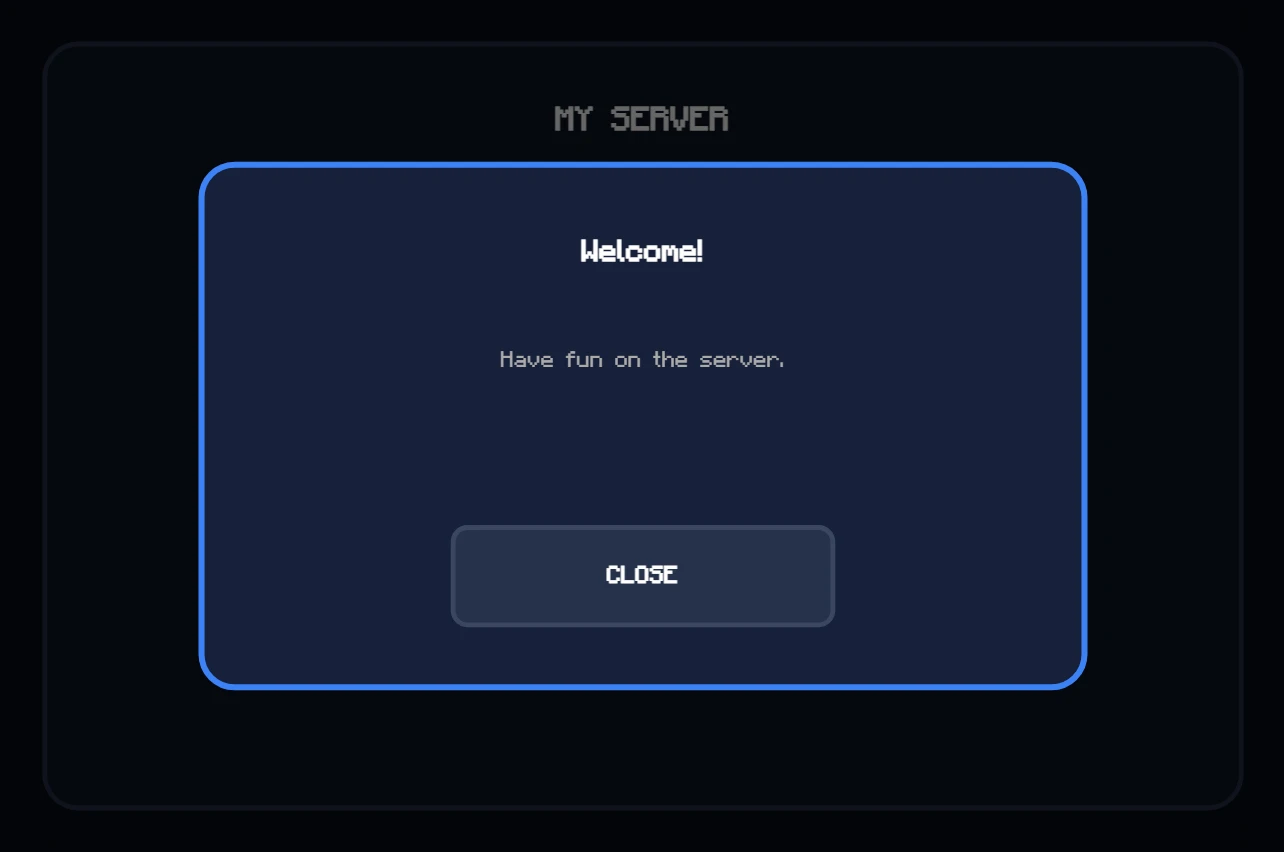
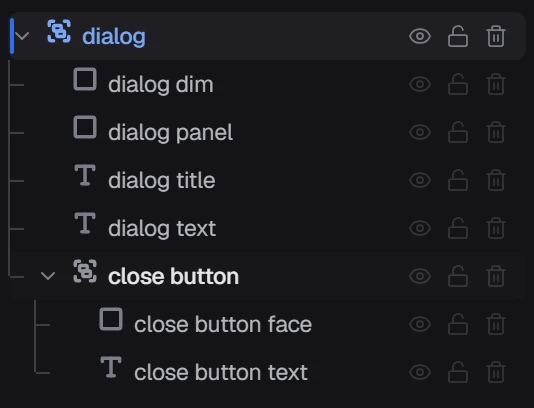
Put it in a group. Select its parts — a dark full-screen rectangle behind, the panel, the texts and the Close button — and press Ctrl+G. Rename the group (F2) to something you'll recognise: here, dialog.
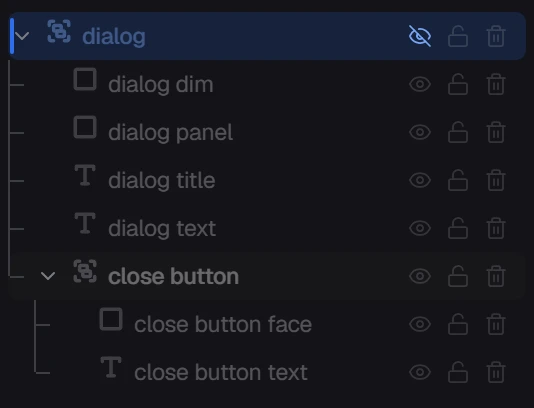
Hide it when the screen opens. Click the eye on the group's row (or right-click it → Hide when the screen opens). The group and everything in it start hidden.
Show it from a button. Select the button that opens it and open the Logic tab. Press Add (Shift+A) and pick Show / hide.
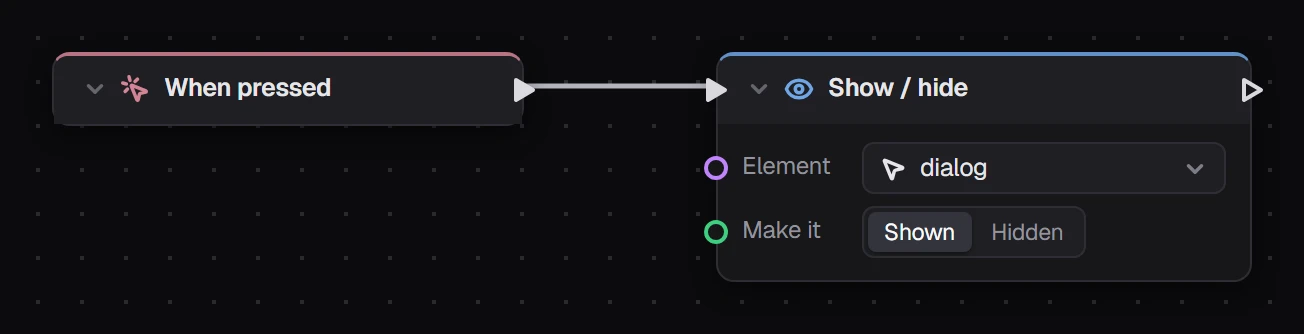
Connect When pressed to it, set Element to the group and Make it to Shown.
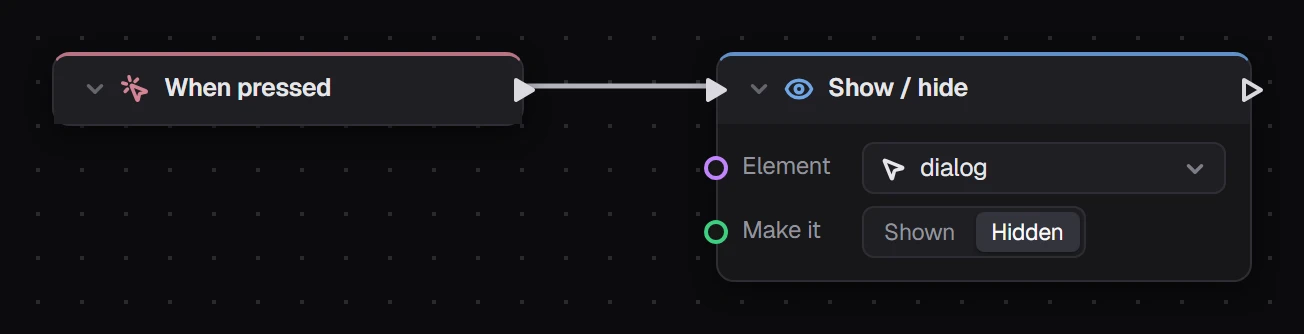
Hide it from Close. The same on the Close button, with Make it set to Hidden.
2. Two panels that take turns
Two buttons, two panels — each panel a group. Each button shows its own panel and hides the other: two Show / hide nodes in a row. The RULES panel is hidden when the screen opens.
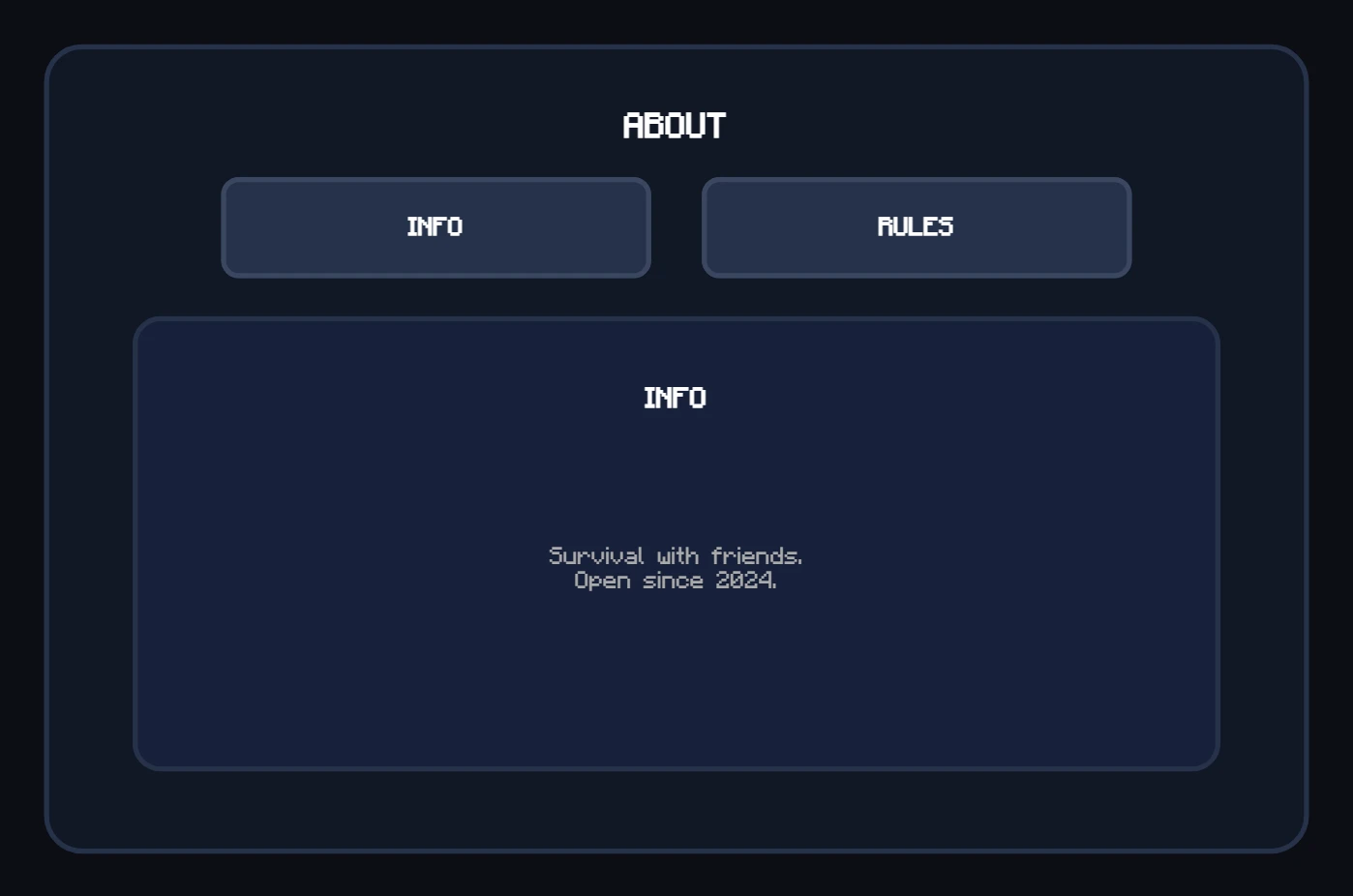
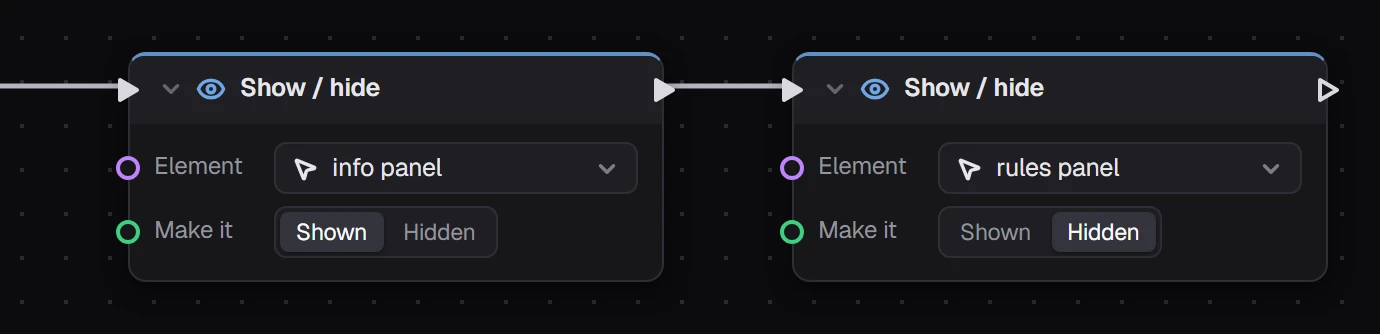
For more than a few pages, a Tab view does this for you.
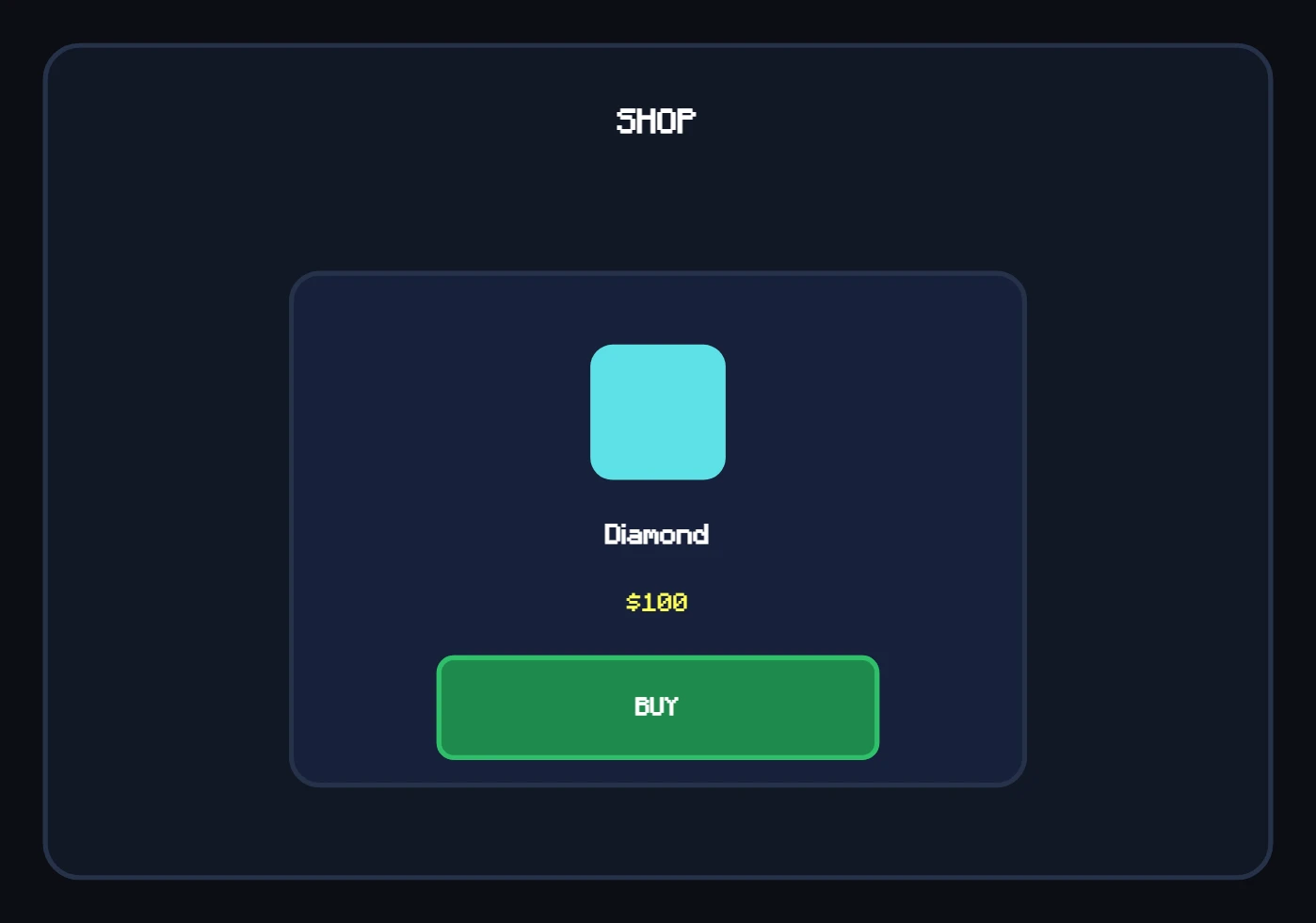
3. A buy button that checks money
An If checks the player's money before anything is taken. This needs Vault and an economy plugin.
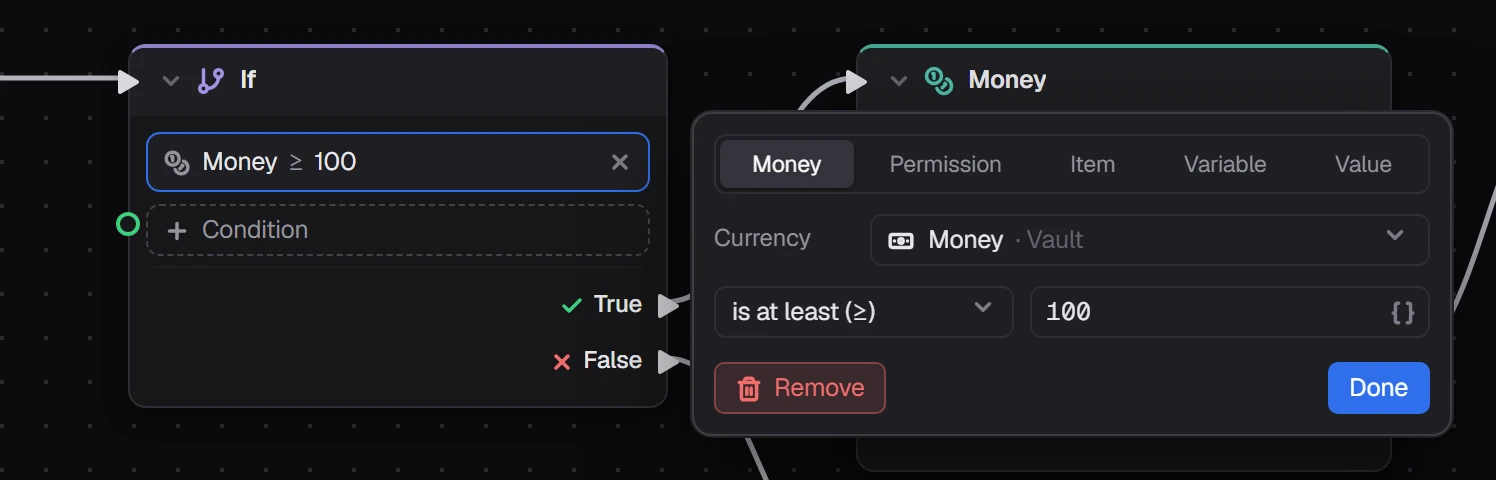
Add the check. Put an If after When pressed and click + Condition. Choose Money, keep the currency on Money · Vault, pick is at least (≥) and type the price.
Wire both answers. True goes to a Money node that takes the price. False goes to a Send message that says what's missing. The If has already checked, so Money's Not enough can stay unconnected.
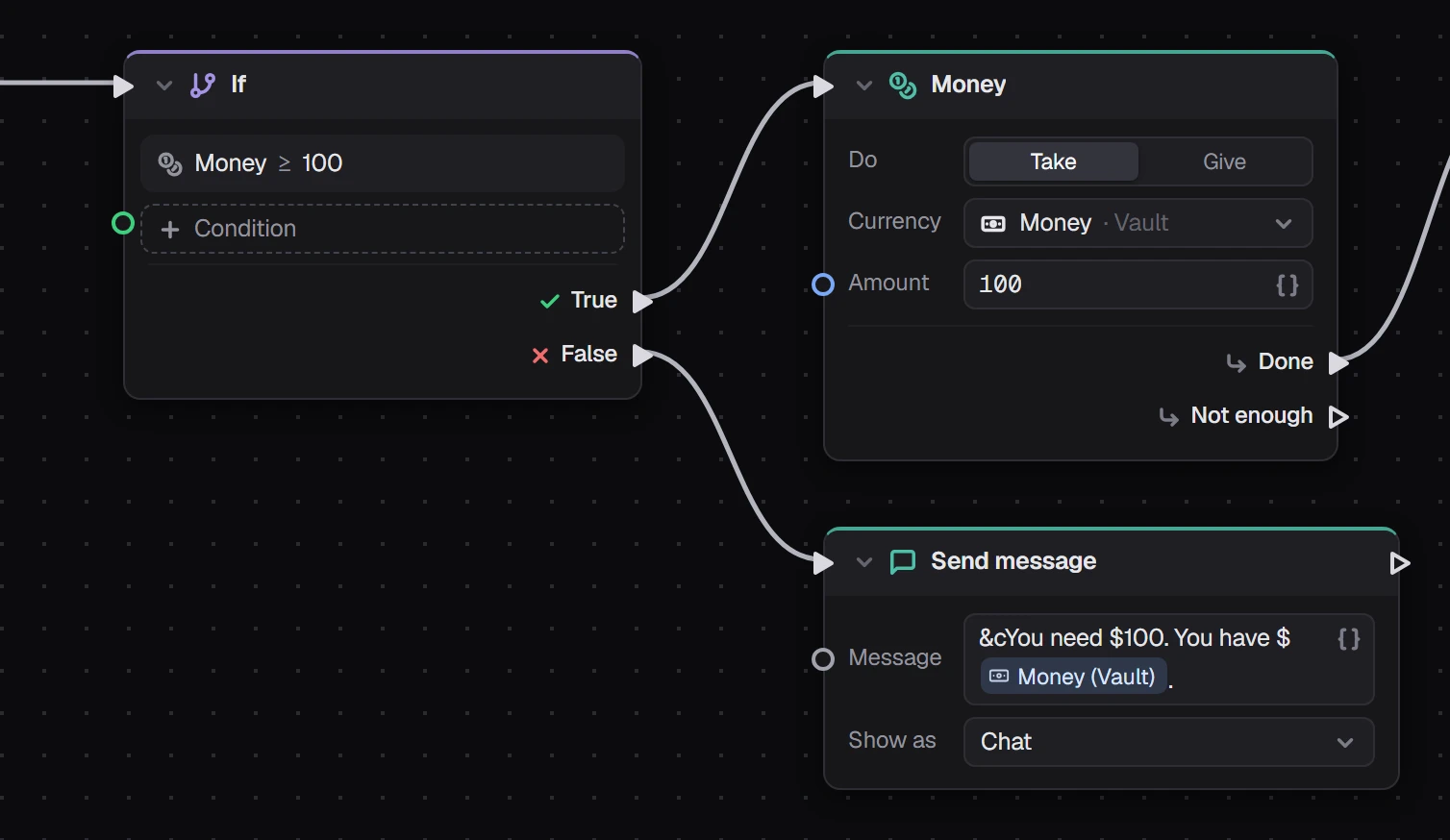
Give the item. After Money's Done, a Run command run as Console:
minecraft:give %player% diamond 1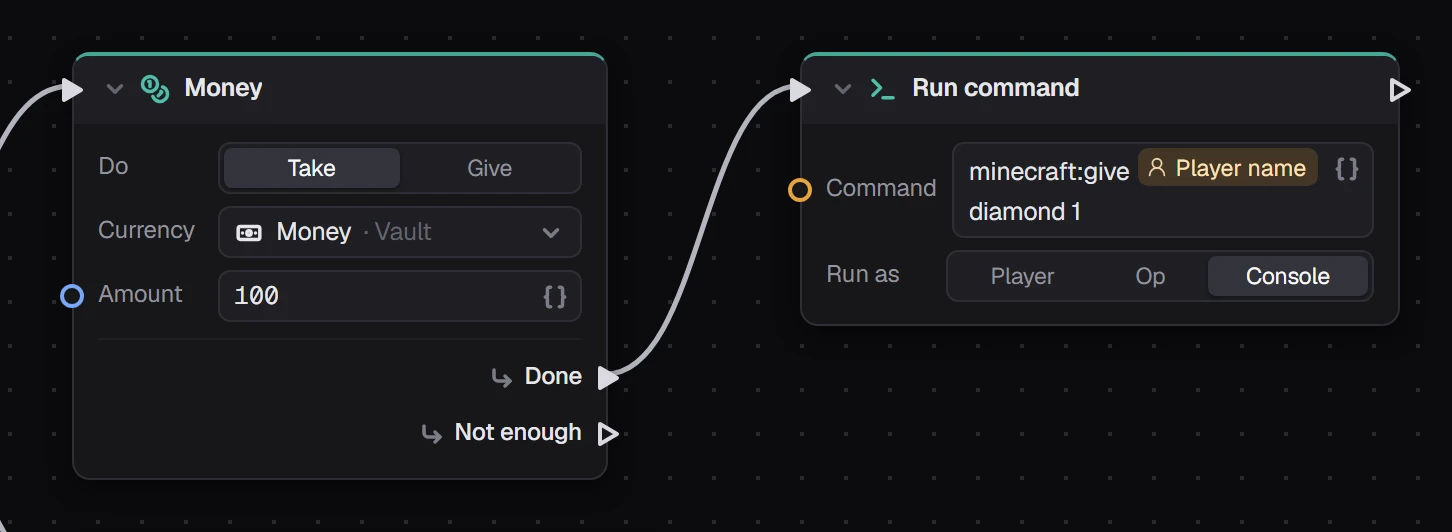
% in a text field and pick a value — Player name, Money, a variable. It shows as a pill and is filled in for each player.4. "Are you sure?" before buying
Lessons 1 and 3 together. BUY shows a confirm dialogue; NO hides it; YES hides it and runs the money check.
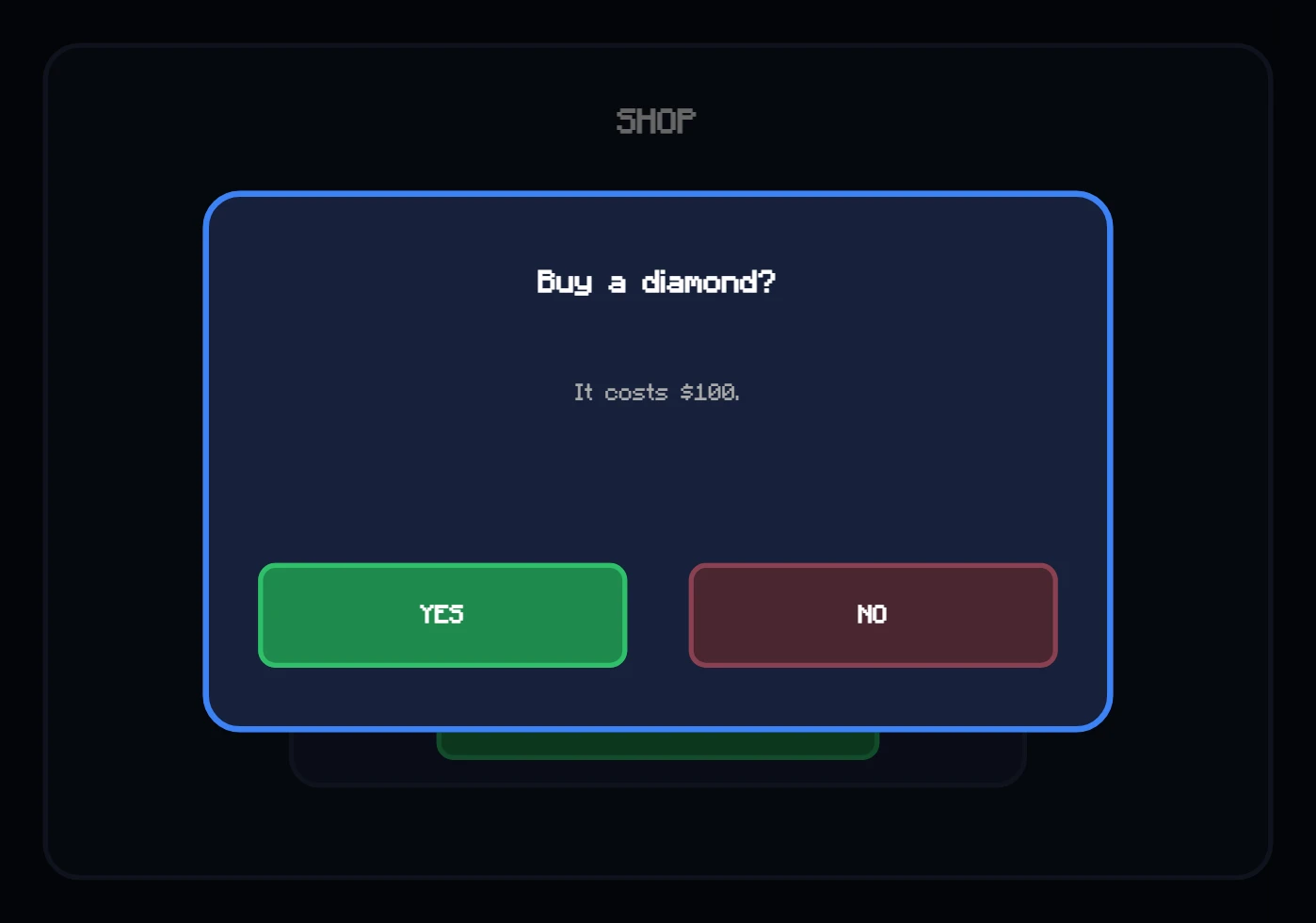
YES: Show / hide (confirm dialog, Hidden), then the If from lesson 3 and everything after it.
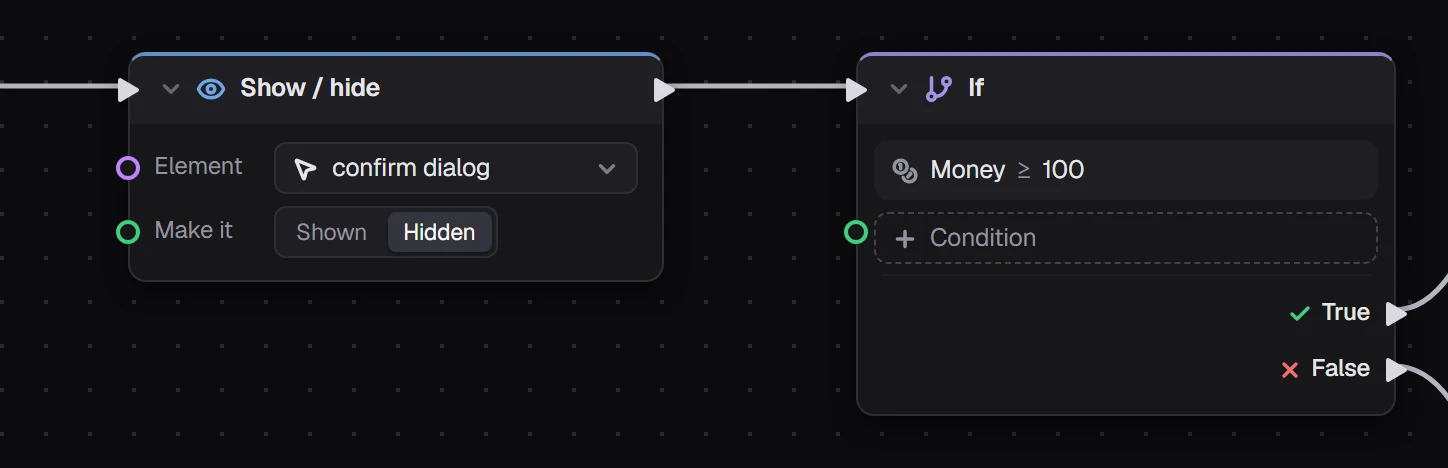
BUY: When pressed → Show / hide (confirm dialog, Shown). NO: Show / hide (confirm dialog, Hidden).