STABLE v1.3

NxMenu

โ˜๏ธ The Future of Menu Building

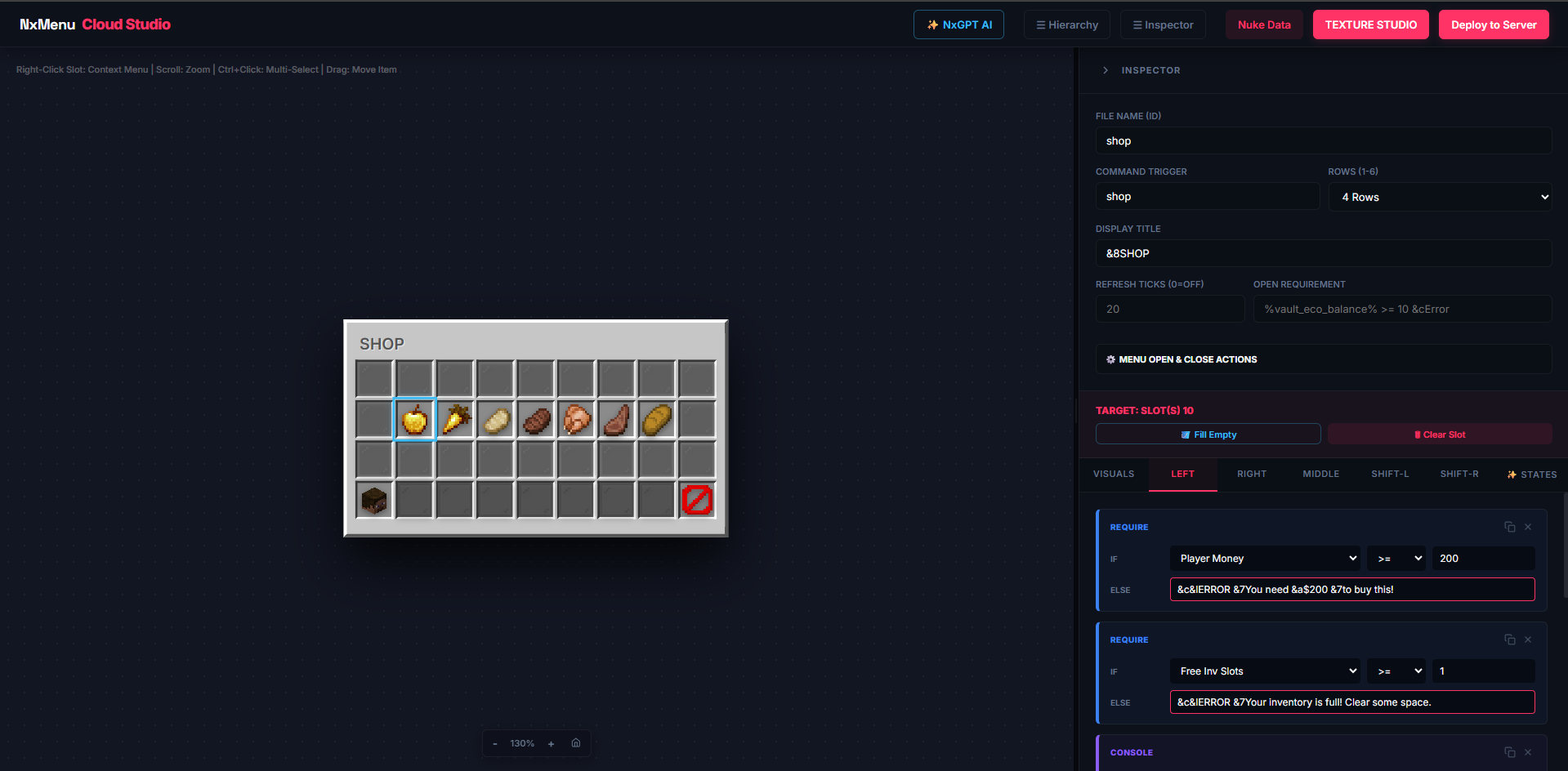
NxMenu Overview

Building serious server menus โ€” shops, profiles, kit selectors, leaderboards โ€” normally means writing thousands of lines of YAML, fighting with Custom Model Data IDs, and reloading the server every time you tweak a pixel.

NxMenu replaces all of that with two cloud-based tools that talk to each other:

  • The Menu Builder (๐Ÿง  Logic) โ€” A visual editor where you drag items into slots, build click-action chains, set conditions, and create variables. This is where you decide what your menu does.
  • The Texture Studio (๐ŸŽจ Visuals) โ€” A pixel-art IDE where you paint custom GUI backgrounds and clickable icons. Output: an auto-generated resource pack. This is where you decide what your menu looks like.

Both tools sync to your server with one in-game command. No restarts, no manual file edits, no YAML.


The Mental Model

๐Ÿ’ก Read this before anything else: NxMenu is split into two studios on purpose. The Menu Builder only handles logic โ€” click actions, conditions, materials. The Texture Studio only handles pixels โ€” GUI backgrounds, custom icons. They communicate through two bridges:

1. Custom GUI Titles โ€” Texture Studio paints a background, gives you a magic title string, you paste it into a Menu's Display Title.
2. Custom Icons via PAPER:CMD โ€” Texture Studio paints a 18ร—18 icon and assigns it a Custom Model Data number. You use PAPER:10001 as the material in the Menu Builder.

๐Ÿš€ Installation & Setup

NxMenu requires a valid license key to communicate with the Cloud Studio. Follow these steps to activate your plugin.


โšก Step-by-Step Setup

  1. Install the Plugin: Place NxMenu.jar into your server's /plugins folder.
  2. Claim Your License: Go to the secure portal at https://nexo.infinitee.work/NxMenu/claim.php and enter your BuiltByBit User ID to generate your unique key.
  3. Add to Config: Open plugins/NxMenu/config.yml and paste your key inside the quotes: license-key: "YOUR_KEY_HERE"
  4. Restart Server: Restart your server. Check the console for the green "License verified successfully!" message.
  5. Open Studio: Type /nxmenu editor in-game to generate your secure workspace link.
โš ๏ธ Security Warning: Your license key is locked to your server's IP and actively monitored. Using the same key across multiple public networks will trigger an automatic ban. Keep it secret!

๐Ÿ”‘ About Editor Sessions

Every time you run /nxmenu editor, the plugin generates a unique secure URL that expires after 1 hour of inactivity. While you have the editor tab open, a heartbeat keeps your session alive automatically. If you close the tab and come back later, just run the command again โ€” your work is saved locally in your browser, so nothing is lost.

โšก Make Your First Menu in 5 Minutes

Let's build a simple /spawn menu with a teleport button and a server info button.


Step 1: Open the Editor

In-game, type:

/nxmenu editor

Click the secure link in chat. Your studio loads instantly.


Step 2: Configure the Menu

The default main menu is already loaded. In the right Inspector panel:

  • Set FILE ID to spawn_menu
  • Set TRIGGER to spawn (this becomes the slash command that opens it)
  • Set DISPLAY TITLE to &8&lยป &fSpawn Menu
  • Set ROWS to 3

Step 3: Add the Teleport Button

Click slot 11 on the GUI canvas (second row, third slot). The Slot Workspace appears on the right.

In the VISUAL tab:

  • Material: ENDER_PEARL
  • Name: &b&lTeleport to Spawn
  • Lore: &7Click to warp home!
  • Check GLOW

Switch to the LEFT tab. Click + to add a [player] command, set it to spawn. Add another action [sound] ENTITY_ENDERMAN_TELEPORT. Add [close] to close the menu after.


Step 4: Add the Info Button

Click slot 15. Set Material to BOOK, Name to &e&lServer Info, and add a [message] action with text &aWelcome to my server, %player%!.


Step 5: Deploy

Click the blue DEPLOY button in the top right. A modal appears with a command like:

/nxmenu applyedit a3f8e2c1

Copy it, paste in-game. The plugin downloads your menu instantly. Now type /spawn in-game โ€” your menu opens! ๐ŸŽ‰

๐Ÿ’ก Pro Tip: The deploy command is valid for 1 hour. After that, just deploy again to get a new one. Your menu stays loaded on the server until you remove it.

๐ŸŽจ The Texture Studio Interface

Open the Texture Studio by clicking TEXTURE STUDIO in the Menu Builder's top bar (or directly via your editor session).

Texture Studio Editor


๐Ÿ”€ The Three Workspace Modes

The Texture Studio has three completely different modes, switched via the top navigation. Each one transforms the entire interface.

1๏ธโƒฃ Layout Mode

The simplest mode. Click any slot in the canvas to toggle whether that slot appears in the final GUI background. Useful for designing menus where you only want certain slots visible (like a 3-column shop with the rest hidden).

2๏ธโƒฃ Menu Paint Mode

A full pixel-art editor for painting your GUI backgrounds. The left sidebar transforms into a tool panel with palettes, brushes, and a complete layer system.

Tools available:

  • Brush โ€” Standard paint with adjustable size (1โ€“10 pixels).
  • Fill โ€” Flood-fill bucket. Replaces all connected pixels of the same color.
  • Eyedropper โ€” Pick a color from the canvas (auto-switches back to Brush after).
  • Text โ€” Stamp text using a built-in pixel font.
  • Line โ€” Click and drag to draw straight lines.
  • Rectangle โ€” Click and drag to draw rectangles.
  • Eraser โ€” Removes pixels from the active layer.
  • Mirror X / Y โ€” Symmetry toggles. Anything you draw mirrors across the chosen axis.

Color Palettes: Aseprite-inspired curated palettes including Pico-8 (16), Retro Gameboy (4), Vaporwave (15), and Master Pixel Art (32). Plus a custom color picker with hex input.

3๏ธโƒฃ Custom Icons Mode

An 18ร—18 pixel-art editor for designing clickable item icons that map to PAPER:CMD in your menus.

Has the same tool palette (minus Text and Transform), 1ร— / 2ร— / 4ร— live preview, and an icon library on the left for quick switching between your saved icons.


๐Ÿ“š Layer System (Menu Paint Mode)

Each painted GUI is built from multiple stackable layers โ€” just like Photoshop or Aseprite.

  • Visibility toggle (eye icon) โ€” Hide a layer without deleting it.
  • Opacity slider โ€” 0โ€“100% per layer.
  • Move Up / Down โ€” Reorder z-stacking.
  • Free Transform (โ–’ icon) โ€” Drag to move, corner handles to resize, with Flip X/Y in the toolbar. Press Enter to apply, Escape to cancel.
  • Duplicate / Merge Down / Flatten โ€” Standard layer ops.
  • Import Image โ€” Upload any PNG/JPG and it pastes onto a new layer (auto-scaled to fit, max 256ร—256).
  • Nudge buttons โ€” 1px directional movement of the active layer.
  • Double-click layer name โ€” Rename the layer.

โŒจ Keyboard Shortcuts

ShortcutAction
Ctrl+ZUndo (mode-aware: paints in Paint mode, icons in Icons mode)
Ctrl+Y / Ctrl+Shift+ZRedo
EnterApply transform (when transforming a layer)
EscapeCancel transform
Middle-click on icon canvasPick color from that pixel

๐Ÿ“Ž Sharing Your Workspace

The Share button in the top bar generates a permanent URL containing your entire workspace. Anyone who opens that URL can clone your art into their own browser. Great for collaborating or backing up to a different machine.

๐Ÿ“ฆ Material Formatting Reference

The Material field in the Visual tab accepts five different formats. This is one of the most powerful parts of NxMenu.


1๏ธโƒฃ Vanilla Bukkit Materials

Any standard Spigot Material name works. Type it in UPPERCASE.

  • DIAMOND_SWORD
  • NETHERITE_INGOT
  • OAK_PLANKS
  • PLAYER_HEAD

The Menu Builder has a built-in autocomplete dropdown showing all 1,000+ valid materials.


2๏ธโƒฃ Custom Model Data Format

Append :<number> to a material to use a Custom Model Data variant from your resource pack.

  • PAPER:10001 โ€” Paper item with CMD 10001
  • DIAMOND_SWORD:5 โ€” Diamond Sword with CMD 5

NxMenu uses the modern (1.21.4+) CustomModelDataComponent API automatically, with fallback to the legacy method for older servers.


3๏ธโƒฃ HEAD- (Live Player Skull)

Display a 3D player skull. The texture loads dynamically based on whose name you provide.

  • HEAD-Notch โ€” Static skull of the player named "Notch".
  • HEAD-%player% โ€” Skull of whoever is viewing the menu.
  • HEAD-%arg1% โ€” Skull of the first command argument (used in profile menus).
๐Ÿ’ก Why this matters: HEAD-%player% creates that classic "this menu is about ME" effect for personal stat menus, kit selectors, and profiles.

4๏ธโƒฃ BASEHEAD- (Custom Texture)

Display a player skull with a fully custom Mojang texture (the kind you find on minecraft-heads.com).

  • BASEHEAD-eyJ0ZXh0dXJlcyI6eyJTS0lOIjp7InVybCI6IiR0XC9pbWFnZS5wbmcifX19

Paste the entire base64 string after BASEHEAD-. Useful for decorative heads (gem icons, animals, custom art).


5๏ธโƒฃ Custom Widget Names (from Texture Studio)

If you've drawn a custom icon in Texture Studio (e.g. gold_coin), you can use that name directly:

  • gold_coin

NxMenu auto-translates this to PAPER:<cmd> behind the scenes during deployment, using the Custom Model Data assigned in Texture Studio. When you reload your editor, it converts back to the friendly name automatically.

โš ๏ธ Important: After saving new icons in Texture Studio, click the โŸณ SYNC button in the Menu Builder's top bar so the dropdown picks up your new icons.

The AMOUNT Field

The Amount field accepts more than just a number:

  • 5 โ€” Static stack of 5.
  • %player_level% โ€” Live updating amount based on placeholders.
  • %vault_eco_balance% โ€” Dynamic counter (note: max 127 per item; over that, it caps).

If your amount string contains a placeholder, the canvas preview shows {..} as a placeholder badge. The real value resolves at click time in-game.

๐Ÿ–ผ๏ธ Custom GUI Backgrounds (The Magic Title)

This is the most powerful feature in NxMenu and also the most misunderstood. Read this whole section.


The Concept

In vanilla Minecraft, GUIs are gray with the small inventory grid. To make a custom-shaped GUI (rounded edges, custom artwork, branded backgrounds), you need to:

  1. Paint a 256ร—256 PNG of what your GUI should look like.
  2. Map that PNG to a Unicode character via the resource pack font system.
  3. Use that Unicode character + 48 negative-pixel shifts in the menu's title to make it overlay perfectly on top of the default chest GUI.

NxMenu does steps 1, 2, and 3 automatically. Here's the workflow:


Step-by-Step: Painting a Custom GUI

1. Open Texture Studio

Click TEXTURE STUDIO in the Menu Builder's top bar.

2. Create or Select a GUI

In the left sidebar (Hierarchy), click + New Menu or select an existing one.

3. Switch to Menu Paint Mode

Click Menu Paint in the top nav. The left panel transforms into the tool palette with layers.

4. Paint Your Background

Use the brush, fill, and shape tools to design your GUI. The painting overlays the default Minecraft chest grid โ€” you'll see your art mixed with the gray slot squares in real time.

5. Configure the Unicode Character

In the right Inspector, look for the Unicode Character box. By default it's set to a 3-character hex code in the F001โ€“FFFF range (Private Use Area). Click Auto to assign the next available code automatically.

The studio detects conflicts and warns you in red if another GUI is already using the same code.

6. Copy the Config String

Right below, you'll see a Config String box showing something like:

&f๎€

Click the COPY badge.

7. Export the Resource Pack

Click Export Pack in the top bar. The modal gives you a download link and a test command:

/nxmenu applyedit <uuid>

Run that in-game to install the pack.

8. Connect It to a Menu in the Menu Builder

Switch back to the Menu Builder. Select your menu. In the Inspector, find the DISPLAY TITLE field. Above it, change the dropdown from TEXT to โ–ง CUSTOM GUI.

A new input appears with the \uF prefix. Type the same 3-character hex you used in Texture Studio (e.g. 001).

Deploy your menu. Your custom-painted background now shows in-game.


๐Ÿ’ก The matching rule: The hex you type in Texture Studio (001) and the hex you type in Menu Builder (001) must match exactly. They both reference the same Unicode character.

๐Ÿ”— The PAPER:CMD Bridge

Custom Model Data is how Minecraft displays a different texture on the same item type. NxMenu uses Paper as the base item for all custom icons, so you can have unlimited custom-art clickable buttons.


The Workflow

1. Draw Your Icon

In Texture Studio, switch to Custom Icons mode. Either click an existing icon to edit it, or click + New Icon.

2. Set the Icon Name and CMD

In the right Inspector:

  • Icon ID / Name: A friendly identifier like gold_coin or quest_button. Letters, numbers, underscores only.
  • Custom Model Data: A unique number starting at 10001. Click Auto to assign the next free one. The studio warns you of conflicts.

3. Paint the Icon

Use the 18ร—18 grid. Tools include brush, fill, eyedropper, line, rectangle, eraser, plus mirror X/Y. The icon auto-saves on every brush stroke release.

4. Export the Pack

Click Export Pack, run the install command in-game.

5. Use the Icon in a Menu

Switch to Menu Builder. Click โŸณ SYNC first to refresh the dropdowns. Select a slot, and in the Material field, you can either type:

  • gold_coin โ€” The friendly name (auto-converts to PAPER:CMD)
  • PAPER:10001 โ€” Direct CMD format

Both work identically.


The Special Invisible Icon (CMD 10000)

๐Ÿ”ฎ Pro Trick: NxMenu auto-generates an invisible 16ร—16 paper item at PAPER:10000. This is incredibly useful: place an invisible button over your custom-painted GUI background to create a clickable hitbox where there's no "item" visible. Perfect for buttons painted directly into the GUI background!

Example: You painted a "CLOSE" button into your GUI background art. In the Menu Builder, place an item at the slot where that art appears, set Material to PAPER:10000, set Hide Tooltip to true, and add a [close] action. Players see your painted button โ€” click it โ€” menu closes. Looks like magic.


Custom Tooltip Suppression

For invisible buttons over GUI backgrounds, always check HIDE TOOLTIP in the Visual tab. This requires Minecraft 1.20.5+ on the server.

๐Ÿ–ฑ Click Types & Action Chains

Every slot can have up to 5 different action chains based on how the player clicks it.


The Five Click Types

TabTriggerCommon Use
LEFTLeft mouse buttonPrimary action (buy, teleport, equip)
RIGHTRight mouse buttonSecondary action (sell, info)
MIDMiddle/scroll wheel clickBulk action (buy 16, preview)
S-LShift + Left clickStack action, fast tier
S-RShift + Right clickBulk sell, alternate option
๐Ÿ’ก Bedrock Tip: Bedrock players can't shift-click in GUIs reliably. If you support Bedrock, use Left/Right/Middle and avoid Shift variants for critical actions.

How Action Chains Execute

Actions run top to bottom, in order. If any [require], [take], or [cooldown] fails, the chain stops immediately and remaining actions are skipped.

Example chain on a "Buy Diamond" button:

  1. [require] %vault_eco_balance% >= 500 &cYou need $500!
  2. [require] %player_empty_slots% >= 1 &cInventory full!
  3. [console] eco take %player% 500
  4. [give] DIAMOND 1
  5. [sound] ENTITY_EXPERIENCE_ORB_PICKUP
  6. [message] &aPurchased!

If the player has $400, step 1 fails and they get the deny message. Steps 2โ€“6 never run.


Reordering Actions

Each action card has a drag handle in the header. Click and drag to reorder. The order is critical โ€” always put gatekeeper actions ([require], [take], [cooldown]) before reward actions.


Copy & Paste Actions

Each action card has a copy icon (โŽ˜). Click to copy that single action to clipboard. Then click the paste icon (โ‡ฃ) on any other slot's tab to paste it. Massive time-saver for repeated logic across slots.


The 50-Action Loop Limit

To prevent server crashes from bad menu design, action chains are limited to 50 sequential actions per click. If you somehow chain 50+ actions, the runtime aborts and logs a warning. This is generous โ€” most chains are 5โ€“10 actions.


Spam Protection

NxMenu has built-in protection:

  • 150ms click debounce โ€” Prevents accidental double-clicks from running the chain twice.
  • 50ms menu open spam guard โ€” Prevents rapid-fire menu opening.
  • Chain processing lock โ€” A new chain can't start while a previous one is still mid-execution.

๐Ÿงฉ Action Blocks: Core Actions

Core Actions are the foundation of your menu interactivity. They handle giving items, sending messages, and manipulating the user's interface.


  • Give Item: Gives the player an item directly into their inventory. You can visually input the Material, Amount, Name, and Lore.
    Give Item Block
    Tip: To add enchantments, type the enchant and level (e.g., sharpness:5) into the Enchants box and press Space to lock it in. The Material field supports the same formats as a slot's Material (vanilla, PAPER:CMD, HEAD-, BASEHEAD-, custom widget).


  • Take Item: Removes items from the player's inventory. Critical for shop sell logic.

    โš ๏ธ Strict Match Behavior:
    By default, [take] DIAMOND 1 only takes vanilla diamonds (no custom name, lore, enchants, or CMD). This protects valuable named items from being accidentally consumed.

    To take a CMD-specific item, use [take] PAPER:10001 1.

    If the player doesn't have enough, the deny message fires and the chain stops immediately.


  • Equip Armor: Forces an item directly into a player's equipment slot (Helmet, Chestplate, Leggings, Boots, or Offhand). If the slot is already occupied, the action fails gracefully and the player gets a notification.
    Equip Armor Block


  • Send Message: Sends a chat message to the player viewing the menu. Supports all standard Minecraft color codes including &a through &f, modifiers &l (bold), &m (strikethrough), &n (underline), &o (italic), and full hex via &#RRGGBB.
    Send Message Block


  • Play Sound: Plays a client-side sound for the player. You can select any native Bukkit Sound enum (like ENTITY_PLAYER_LEVELUP) from the autocomplete dropdown.
    Play Sound Block


  • Open Menu: Closes the current GUI and instantly opens another menu from your workspace. Select the target Menu ID from the dropdown.
    Open Menu Block
    Pass arguments: You can append args to send to the new menu, e.g. profile_menu %player% opens the profile_menu with the current player as %arg1%.


  • Close GUI: Forcefully closes the inventory screen for the player. No arguments needed.
    Close GUI Block

๐Ÿ’ป Action Blocks: Commands

Command blocks allow your menu to interact directly with the server, the player, or your proxy network.


  • Console Command: Executes a command in the background as the Server Console (full permissions). Do not include the /.
    Examples:

    • eco give %player% 500
    • lp user %player% permission set rank.vip true
    • tellraw %player% {"text":"Hello!","color":"gold"}
    Console Command Block


  • Player Command: Forces the player who clicked the item to execute a command (with their own permissions). Do not include the /.
    Example: spawn
    Player Command Block


  • Connect Server: Sends a plugin message to teleport the player across your BungeeCord or Velocity network. The target server name must match the entry in your proxy config.
    Example: survival
    Connect Server Block
๐Ÿ’ก Pro Tip: Use [console] over [player] for anything that requires permissions the player doesn't have (giving items, modifying ranks, world commands). Use [player] for self-actions like home/spawn/warp where the player needs to be the executor.

๐Ÿง  Action Blocks: Logic & Variables

This is where NxMenu becomes a true engine. You can build advanced conditional systems, quests, daily rewards, and limits without needing any external scripting plugins.


Conditional Flow

  • If Condition (Require): A gatekeeper. Choose a placeholder, an operator (==, !=, >=, <=, >, <), and a value. If the condition fails, the chain stops and the player gets the deny message.
    If Condition Block
    Placeholder dropdown includes common ones like %vault_eco_balance%, %player_level%, plus a Customโ€ฆ option for any PlaceholderAPI placeholder, and โŽˆ Meta Variableโ€ฆ for your custom NxMenu variables.


  • Cooldown Limit: Prevents spamming. Assign a unique ID (e.g., daily_reward) and a time in seconds. The player cannot trigger this action again until the time expires. Use %time% in the Deny Message to display the remaining time formatted as 1d 3h 22m 14s.
    Cooldown Block


  • Chat Input: Pauses the chain, closes the menu, and prompts the player to type in chat. Their response is captured into the %input% placeholder, usable in any subsequent action. Players can type cancel to abort safely.
    Chat Input Block
    Example:
    [input] &eEnter the player to message:
    [console] mail send %input% &7You got a gift!


  • Delay (Wait): Pauses the action chain for a set number of server ticks (20 ticks = 1 second). Useful for staggering effects.
    Delay Block

The Meta System (Custom Variables)

Meta variables are your own custom data points, persistently tied to a player while they're online. Use them to track quests, purchase counts, daily limits, or any custom state.

  • Set Variable (Meta): Forces a specific variable to an exact number or string.
    Example: Set has_claimed_kit to 1.
    Set Meta Block


  • Add to Variable: Increments a numeric variable.
    Example: Add 1 to shop_purchases on every buy.
    Add Meta Block


  • Subtract from Var: Decrements a numeric variable.
    Example: Subtract 1 from remaining_lives.
    Subtract Meta Block
๐Ÿ’ก Reading Your Variables:
Once a variable exists, reference it anywhere with %nxmenu_meta_<keyname>%:

โ€ข In item lore: &7Purchases: &e%nxmenu_meta_shop_purchases%
โ€ข In amount field: %nxmenu_meta_quest_progress% (live updating count)
โ€ข In If Conditions: Check %nxmenu_meta_purchases% <= 5 for purchase limits
โ€ข In state conditions: To swap item visuals based on progress

Limits: Max 50 keys per player, max 32 chars per key name. Variables clear when the player disconnects (in-memory only).

โžก The State System (Conditional Item Overrides)

The State System lets a single slot show different visuals and run different actions based on conditions. This is the secret to building dynamic menus that change without writing duplicate slot configs.


The Concept

Every slot has a base item (Material, Name, Lore, click actions). On top of that, you can stack override states. Each state has:

  • A condition (e.g. %vault_eco_balance% < 500)
  • Optional overrides for: Material, Name, Lore, click actions

When the menu renders, NxMenu checks each state top to bottom. The first matching state wins. Any field not overridden by the state falls back to the base item.


Example: Locked/Unlocked Buy Button

Base Item:

  • Material: DIAMOND
  • Name: &b&lBuy Diamond
  • Lore: &7Costs $500
  • Left-click: Buy logic

Override State 1: If %vault_eco_balance% < 500

  • Material: BARRIER
  • Name: &c&lLocked
  • Lore: &cYou need $500 to unlock
  • Left-click: Empty (no buy logic)

Now, when a poor player views the menu, they see a red barrier. When they earn $500, the slot transforms into a buyable diamond automatically (refresh on menu update interval).


Adding a State

  1. Click a slot.
  2. Switch to the โŸก STATE tab.
  3. Click + ADD OVERRIDE.
  4. Set the IF condition (placeholder + operator + value).
  5. Set the override Material, Name, and/or Lore (leave blank to inherit from base).
  6. Optionally override click actions per click type.

Real-World Use Cases

  • Quest Progress: Show grayed-out item until %nxmenu_meta_quest_done% == 1
  • Permission-locked Items: Display "VIP Only" until %hasperm_rank.vip% == yes
  • Cooldown Indicators: Switch the icon to a clock when on cooldown
  • Daily Reward Flag: Change to a green checkmark after %nxmenu_meta_claimed_today% == 1
  • Stock System: Show "OUT OF STOCK" when %nxmenu_meta_stock% <= 0
๐Ÿ’ก Refresh Tip: States only re-evaluate when the menu redraws. Set REFRESH TICKS in the Inspector (e.g. 20 = 1 second) to make the menu live-update so states swap automatically as conditions change. Don't set this too low (5 ticks = 4 redraws/sec is overkill).

๐Ÿงฉ Placeholders โ€” Complete Reference

NxMenu has its own built-in placeholders plus full PlaceholderAPI integration. You can use placeholders in:

  • Menu Title
  • Item Name and Lore
  • Item Amount
  • Action arguments (commands, messages)
  • Conditions (require, state)

Built-in Player Placeholders

PlaceholderReturns
%player% / %player_name%The viewer's username
%player_level%XP level (integer)
%player_health%Current HP, rounded to integer
%player_ping%Network latency in ms
%player_empty_slots%Number of free inventory slots (0โ€“36)

Boolean/Permission Placeholders

PlaceholderReturns
%isonline_<name>%true or false
%hasperm_<node>%yes or no

Example: %hasperm_essentials.fly% returns yes or no.


Custom Variables (Meta System)

PlaceholderReturns
%nxmenu_meta_<key>%Your custom variable's value (defaults to 0 if unset)

Command Argument Placeholders

PlaceholderReturns
%args_count%Total number of args passed to the menu command
%arg1%, %arg2%, ...Specific argument by position
%args%All args joined by spaces

If no args are passed, %arg1% defaults to the player's own name. This means a self-profile menu works whether the player runs /profile or /profile Notch.


๐Ÿ”ฅ Target Placeholders (Advanced)

This is one of NxMenu's most powerful features. You can resolve any placeholder against a different player using the colon-target syntax.

Syntax:

<target>:<placeholder>

Where <target> can be:

  • A literal username (e.g. Notch:%vault_eco_balance%)
  • An arg placeholder (e.g. %arg1%:%player_level%)

Use Case: Player Profile Menu

You build a /whois <player> menu. The viewer runs /whois Notch. In the menu:

  • Item Name: &b%arg1%'s Profile โ†’ "Notch's Profile"
  • Lore line 1: &7Money: &a$%arg1%:%vault_eco_balance% โ†’ Notch's actual balance
  • Lore line 2: &7Level: &e%arg1%:%player_level% โ†’ Notch's actual level
  • Lore line 3: &7Online: &a%isonline_%arg1%% โ†’ "true" if Notch is online
  • Material: HEAD-%arg1% โ†’ Notch's actual skull

One menu config now works for any player.


Special Placeholders

PlaceholderContext
%input%Player's chat response after a [input] action
%time%Formatted remaining cooldown (used in [cooldown] deny msg)

PlaceholderAPI

If PlaceholderAPI is installed on your server, any PAPI placeholder works automatically. Examples:

  • %vault_eco_balance% โ€” Vault economy balance
  • Anything from any expansion you've installed.

๐ŸŽฏ Building Player Profile Menus

Args (command arguments) are the secret to building parameterized menus โ€” menus that change based on input. They power player profile menus, target-specific actions, and dynamic GUIs.


How Args Work

When a menu opens, args are everything that comes after the menu command:

/profile Notch โ†’ %arg1% = Notch

/whois Notch admin โ†’ %arg1% = Notch, %arg2% = admin

If no args are provided, NxMenu falls back to the viewer's own name as %arg1%. This makes self-targeting menus work seamlessly.


Step-by-Step: Building a /profile Menu

Step 1: Create the Menu

  • FILE ID: profile_menu
  • TRIGGER: profile
  • DISPLAY TITLE: &8ยป &b%arg1%'s Profile
  • ROWS: 3

Step 2: Build the Avatar Slot

Place an item at slot 13 (center):

  • Material: HEAD-%arg1%
  • Name: &b%arg1%
  • Lore:
    &7Level: &e%arg1%:%player_level%
    &7Money: &a$%arg1%:%vault_eco_balance%
    &7Status: &f%isonline_%arg1%%

Step 3: Add an Open Requirement

To prevent crashes from typos in player names, set the menu's Open Requirement to:

  • Type: ONLINE CHECK
  • Target: %arg1%
  • Deny msg: &cThat player is offline or doesn't exist!

Step 4: Deploy

Run /profile Notch in-game and watch the magic.


Passing Args to Submenus

When using the [menu] action, you can pass args by appending them after the menu ID:

  • [menu] friend_actions %arg1% โ€” Opens friend_actions menu with the same target
  • [menu] confirm_purchase 500 diamond โ€” Opens with arg1=500, arg2=diamond

The Magic Default

๐Ÿ’ก Smart Fallback: If a player runs /profile with no args, %arg1% defaults to their own name. This means the same menu works as both "my profile" and "someone else's profile" without any extra config.

๐Ÿšซ Restricting Menu Access

Sometimes you want to lock a menu down based on permissions, conditions, or world. NxMenu has three layers of access control.


Layer 1: Open Requirements

The Inspector has an OPEN REQUIREMENT card with four modes:

NONE

Any player who can run the trigger command can open the menu.

STANDARD

Custom condition. Choose a placeholder, operator, and value.

Example: %player_level% >= 10 &cYou need level 10!

ONLINE CHECK

Verify a target player is currently online. The default target is %arg1%, perfect for profile menus.

Example: Target = %arg1%, Deny = &cThat player is offline!

PERMISSION

Check a permission node.

Example: Perm = nxmenu.shop.vip, Deny = &cVIP rank required!


Layer 2: World Restrictions

The Inspector has DENY WORLDS and DENY MSG fields:

  • DENY WORLDS: Comma-separated list of world names where the menu is blocked
  • DENY MSG: Message shown if a player tries to open it in a blocked world

Example: Set DENY WORLDS to pvp_arena, dungeon_1 to prevent menu access in combat zones.


Layer 3: Per-Slot Conditions

Even if a player can open the menu, individual slots can have their own gates via [require] action blocks or State System overrides. See the State System section for details.


Best Practices

  • Use Open Requirements for high-level access (rank checks, level gates).
  • Use Deny Worlds for context restrictions (no shop in PvP areas).
  • Use per-slot [require] for fine-grained item-level gating (e.g. need money for THIS purchase).
  • Use States when you want to show the locked state visually instead of blocking access entirely.

โ– The Shop Generator Wizard

The Shop Generator builds a complete 4-way shop block in a single click. It's the fastest way to set up traditional buy/sell trading.


Opening the Wizard

Inside any click action tab (LEFT, RIGHT, MID, S-L, S-R), look for the small โ– button next to the +. Click it.


What It Asks

  • ITEM: The material being traded (e.g. DIAMOND)
  • BUY PRICE: Cost per single item (set to 0 to disable buying)
  • SELL PRICE: Payout per single item (set to 0 to disable selling)

What It Generates

The wizard auto-builds a full 4-way shop with all click handlers:

ClickAction
LEFTBuy 1 (with balance check, inv-space check, eco take, give item, sound)
RIGHTSell 1 (with item-have check, eco give, sound)
MIDDLEBuy 16 stack (16x cost, 16x give)
SHIFT-RIGHTSell 16 (bulk sell)

Plus:

  • Auto-generated lore showing all four prices and current balance
  • An auto-created State Override showing a red "Cannot Afford" version when player balance is too low
  • Sound effects for both successful trades

Customizing After Generation

The generated chains aren't locked โ€” they're just normal action chains. You can edit, reorder, add steps, or change deny messages freely. Just open each tab and tweak.

โš ๏ธ Note: The Shop Wizard requires Vault + an economy plugin (like EssentialsX, CMI, or any Vault-compatible economy). The generated commands use eco take and eco give, which are Vault standards.

๐Ÿ“ค Sharing Workspaces (Packages)

NxMenu's Package system lets you share complete setups โ€” menus, GUI canvases, and custom icons โ€” between servers, team members, or as templates.


Exporting a Package

  1. Click โ‡ก EXPORT in the top bar.
  2. A modal shows three columns:
  • Logic Menus โ€” Your menu configurations (slots, actions, conditions)
  • Texture Canvases โ€” Your painted GUI backgrounds from Texture Studio
  • Custom Widgets โ€” Your 18ร—18 icons (with their CMD numbers)
  1. Check the items you want to bundle. Use the TOGGLE button at the top of each column to select all/none in that group.
  2. Click GENERATE .ZIP. Your browser downloads a nxpkg_xxxxx.zip file.

The ZIP is a self-contained package with a JSON manifest. Send it to anyone running NxMenu.


Importing a Package

  1. Click โ‡ฃ IMPORT in the top bar.
  2. Choose a .zip or .json file.
  3. The same 3-column picker appears, showing what's inside.
  4. Check what you want to merge into your workspace. Items NOT checked are skipped.
  5. Click MERGE WORKSPACE.

Conflict Handling

NxMenu handles ID and CMD conflicts intelligently:

  • Menu ID conflicts: Imported menus get suffixed with _1, _2, etc. (e.g. shop becomes shop_1).
  • Texture name conflicts: Same auto-suffix system.
  • Unicode conflicts: Automatically reassigns next available F-range hex.
  • CMD conflicts: The original CMD is preserved if free; otherwise the icon imports without a CMD (you assign one manually).

Sharing via URL (Texture Studio Only)

The Texture Studio also has a Share button that generates a permanent URL containing your full workspace. Anyone who opens that link clones your work into their own browser. Useful for quick collaboration without ZIP files.

๐Ÿ’ก Real-World Use Cases:
โ€ข Selling pre-built menu templates on marketplaces
โ€ข Backing up your work to a different machine
โ€ข Sharing GUI designs with your design team
โ€ข Distributing community templates

๐Ÿ“ฆ Automated Resource Pack Compilation

NxMenu eliminates the headache of building resource packs manually. Click one button and it compiles everything.


What Gets Compiled

When you click Export Pack in Texture Studio, the cloud compiler generates:

  • GUI textures โ€” Each painted canvas becomes a 256ร—256 PNG.
  • Custom item textures โ€” Each 18ร—18 icon becomes a PNG with a matching JSON model.
  • Font providers โ€” default.json with bitmap mappings for every GUI texture.
  • Paper item override โ€” paper.json using the modern range_dispatch model with all your CMD entries.
  • Invisible CMD 10000 โ€” Auto-generated 16ร—16 transparent paper for clickable hitboxes.
  • Reference files โ€” nxmenu_titles.txt and nxmenu_cmd_list.txt with human-readable mappings.

Three Pack Variants

The Export modal gives you three downloads:

1. Java Pack

Standard Vanilla resource pack format. Drop into resourcepacks/ on the client, or host on a CDN and serve via your server's resource-pack setting in server.properties.

2. ItemsAdder Pack

Pre-formatted for ItemsAdder. The internal structure uses nxmenu/resourcepack/ root, so you can extract directly into your plugins/ItemsAdder/contents/ folder. ItemsAdder will pick it up on next zip-pack rebuild.

3. Bedrock Addon

A two-pack bundle for Geyser-Spigot servers. See the Bedrock Compatibility section.


Quick Testing

Use the test command from the modal:

/nxmenu applyedit <uuid>

The plugin applies your latest pack instantly. Test links expire after 1 hour for security.


Slot Highlight Toggle

The Export modal has a Slot Highlight toggle:

  • Disabled (default): NxMenu injects empty sprites that suppress Minecraft's default white slot highlight on hover. Cleaner look for custom-painted GUIs.
  • Enabled: Vanilla slot hover behavior is preserved. Use this if your GUI design relies on showing slot positions.

Toggling this auto-recompiles the pack if you've already exported once.


Custom Fonts

The Texture Studio's right Inspector has a Custom Font uploader. You can upload a .ttf, .otf, .woff, or .woff2 to preview your title rendered in that font on the canvas.

โš ๏ธ Note: Custom font uploads are browser-local previews only โ€” they don't ship with the resource pack. Use them to design titles that match a font you'll embed yourself.

๐Ÿ“ฑ Bedrock Edition (via Geyser)

NxMenu has full Bedrock support โ€” with caveats. Here's exactly what works.


What Works on Bedrock

  • โœ… All menu logic โ€” click actions, conditions, variables, states
  • โœ… Custom GUI backgrounds (with the Bedrock UI overlay pack)
  • โœ… Custom icons (via Geyser item mappings)
  • โœ… Heads (HEAD- and BASEHEAD-)
  • โœ… PlaceholderAPI integration

What Doesn't Work

  • โš ๏ธ Shift-click reliability (Bedrock players can't shift-click in inventories on touch/controller)
  • โš ๏ธ Middle-click on touch devices (no middle button on phones)

Recommendation: If you have a large Bedrock playerbase, prefer LEFT and RIGHT click handlers as the primary interactions. Use Shift/Middle for power-user shortcuts only.


Setting Up Bedrock

The Texture Studio's Export modal includes a Bedrock Addon download. The ZIP contains:

  • Geyser-Spigot/packs/nxmenu_geyser_pack.zip โ€” Bedrock item textures with CMDโ†’bedrock_identifier mappings
  • Geyser-Spigot/packs/nxmenu_ui_pack.mcpack โ€” UI overlay pack for custom GUI backgrounds
  • Geyser-Spigot/custom_mappings/geyser_mappings.json โ€” The Geyser item mapping config

Installation:

  1. Download and extract the Bedrock ZIP.
  2. Copy the contents of the Geyser-Spigot folder into your plugins/Geyser-Spigot/ folder, preserving subfolder structure.
  3. Restart your server (or run /geyser reload).
  4. Bedrock players will now see your custom item icons and GUI backgrounds.

How the Bedrock UI Pack Works

NxMenu uses a clever trick: when a menu's title contains a special ยง sequence, the Bedrock UI pack detects it and overlays the matching custom GUI background on top of the standard chest screen. This happens entirely client-side via Bedrock's UI definition system.

For Bedrock players, your menu still functions exactly the same โ€” clicks register, actions execute, items appear. The only difference is the texture rendering pipeline.

โš™๏ธ Commands

CommandDescription
/nxmenu editor Generates a secure URL to open your Menu Builder workspace.
/nxmenu applyedit <uuid> Downloads and syncs menu layout changes from the cloud. Generated by clicking DEPLOY.
/nxmenu open <menuId> [args...] Opens a specific menu manually. Useful for NPC commands, citizens scripts, or right-click block events. Args become %arg1%, %arg2%, etc.
/nxmenu reload Reloads local JSON menu files and plugin configuration without restarting.

Triggers vs. Manual Open

You have two ways to open menus in-game:

  • TRIGGER field: Set in the Inspector. Becomes a global slash command (e.g. set TRIGGER to shop โ†’ players run /shop). Triggers can pass args automatically.
  • /nxmenu open: The universal opener. Works for any menu regardless of trigger setting. Useful when you want submenus that aren't directly callable, or for triggering menus from NPCs/blocks.

Examples

  • /shop โ€” Player runs the trigger, opens the shop.
  • /nxmenu open profile_menu Notch โ€” Opens profile menu for Notch.
  • /nxmenu open quest_menu daily โ€” Opens quest menu with arg1=daily (you can use this in conditions).

๐Ÿ” Permissions

NxMenu uses a single administrative permission node.


PermissionDescriptionDefault
nxmenu.admin Grants access to the web editor, applying edits, reloading the plugin, and testing resource packs. OP

Player Access Control

Regular players don't need any specific NxMenu permissions to use menus. They just run the trigger command (or click an NPC, etc.) and the menu opens.

To restrict who can open specific menus, use one of these layers (covered in detail in the Open Requirements section):

  • Open Requirement (PERMISSION mode) โ€” Block menu opening based on a permission node.
  • Per-action [require] โ€” Block specific clicks based on permissions or conditions.
  • Bukkit command permissions โ€” Use a permission plugin (LuckPerms, etc.) to restrict who can run the trigger command itself.

Example Permission Setup

Want only VIPs to access /vipshop?

  1. In the Menu Builder, set OPEN REQUIREMENT to PERMISSION mode.
  2. Set perm to group.vip (or whatever your VIP node is).
  3. Set deny msg to &cThis is for VIPs only!.
  4. Deploy.

Non-VIPs running /vipshop get the deny message instead of the menu.

โ“ Frequently Asked Questions


Why did my editor link expire?

For security, editor sessions expire after 1 hour of inactivity. While the tab is open, NxMenu sends a heartbeat every 5 minutes to keep your session alive. If you closed the tab and came back hours later, just run /nxmenu editor in-game again โ€” your work is saved locally in your browser, so you pick up exactly where you left off.


Does this work on Bedrock?

Yes! All menu logic, click actions, and conditions work perfectly on Bedrock via GeyserMC. Custom item icons and GUI backgrounds also work if you install the Bedrock Addon pack (see the Bedrock section). The only caveat is shift-click and middle-click reliability on touch/controller devices.


Can I use my Texture Studio art in other plugins?

Yes! When you Export Pack, download the Java Pack ZIP. Inside you'll find nxmenu_titles.txt and nxmenu_cmd_list.txt with the exact Unicode characters and CMD numbers for everything you painted. You can use those values in any other plugin (DeluxeMenus, ChestCommands, etc.).


Why isn't my custom icon showing up in the Menu Builder dropdown?

After saving icons in Texture Studio, you need to click the โŸณ SYNC button in the Menu Builder's top bar. This re-reads the local storage and refreshes the material autocomplete list.


What's the difference between [require] in actions vs Open Requirements vs State conditions?

  • Open Requirements โ€” Gates the entire menu. If failed, the menu doesn't open at all.
  • [require] in actions โ€” Gates a specific click chain. If failed, that click does nothing (deny msg fires).
  • State conditions โ€” Visually changes a slot's appearance and click behavior based on conditions, without blocking access.

Why does [take] sometimes not work even when the player has the item?

NxMenu's [take] is strict by default โ€” it only matches vanilla items with no custom name, lore, enchants, or CMD. This prevents accidentally consuming named/enchanted items. To take a CMD-specific item, use [take] PAPER:10001 1 instead of [take] PAPER 1.


How do I make a menu that opens for another player?

Use args. Set the menu's TRIGGER to profile. When a player runs /profile Notch, %arg1% becomes Notch. Use %arg1%:%placeholder% syntax to read Notch's data. See the Args & Player Profiles section for a full walkthrough.


Why is my custom GUI background not aligning correctly?

Three things to check:

  1. The hex code in Texture Studio's Unicode field must match exactly the hex you paste in the Menu Builder's Custom GUI input.
  2. Make sure the resource pack is actually applied client-side. Run the test command from the Export modal.
  3. The Menu Builder's title-mode dropdown must be set to โ–ง CUSTOM GUI, not TEXT.

How many menus and icons can I create?

There's no hard limit on menus, GUI canvases, or icons. CMD numbers run from 10001 to over 2,000,000,000, so you essentially have unlimited room. Browser localStorage holds approximately 10MB of workspace data.


Can multiple admins edit the same workspace?

Each admin's workspace is local to their browser. To share, use the Share button in Texture Studio (URL-based) or the Export Package system in Menu Builder (ZIP-based). Note: there's no real-time multiplayer editing โ€” work in shifts and re-share when changes are made.


Do meta variables persist across server restarts?

No. Meta variables (%nxmenu_meta_*%) are stored in memory and clear when the player disconnects or the server restarts. For persistent data, use a permission plugin's metadata or write to a database via console commands.